...
- Log in to the dashboard.
- Select the appropriate project from the drop down menu at the top left.
- On the Project tab, open the Network tab and click Routers category.
- Click Create Router.
- In the Create Router dialog box (fig), specify a name for the router and an External Network, and click Create Router.
The new router is now displayed in the Routers tab.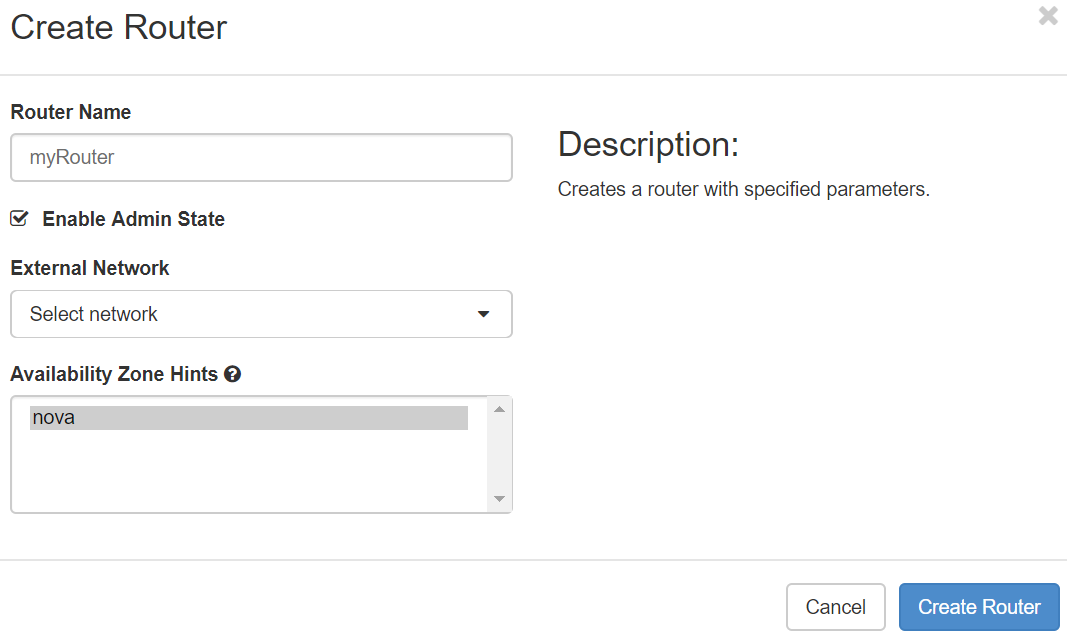
- To connect a private network to the newly created router, perform the following steps:
- On the Routers tab, click the name of the router.
- On the Router Details page, click the Interfaces tab, then click Add Interface.
- In the Add Interface dialog box (fig), select a Subnet.
Optionally, in the Add Interface dialog dialog box , you can set an an IP Address for for the router interface, for the selected subnet. If you choose not to set the IP Address value, then by default OpenStack Networking uses the first host IP address in the subnet. The Router Name and Router ID fields are automatically updated.
- Click Add Interface.
...