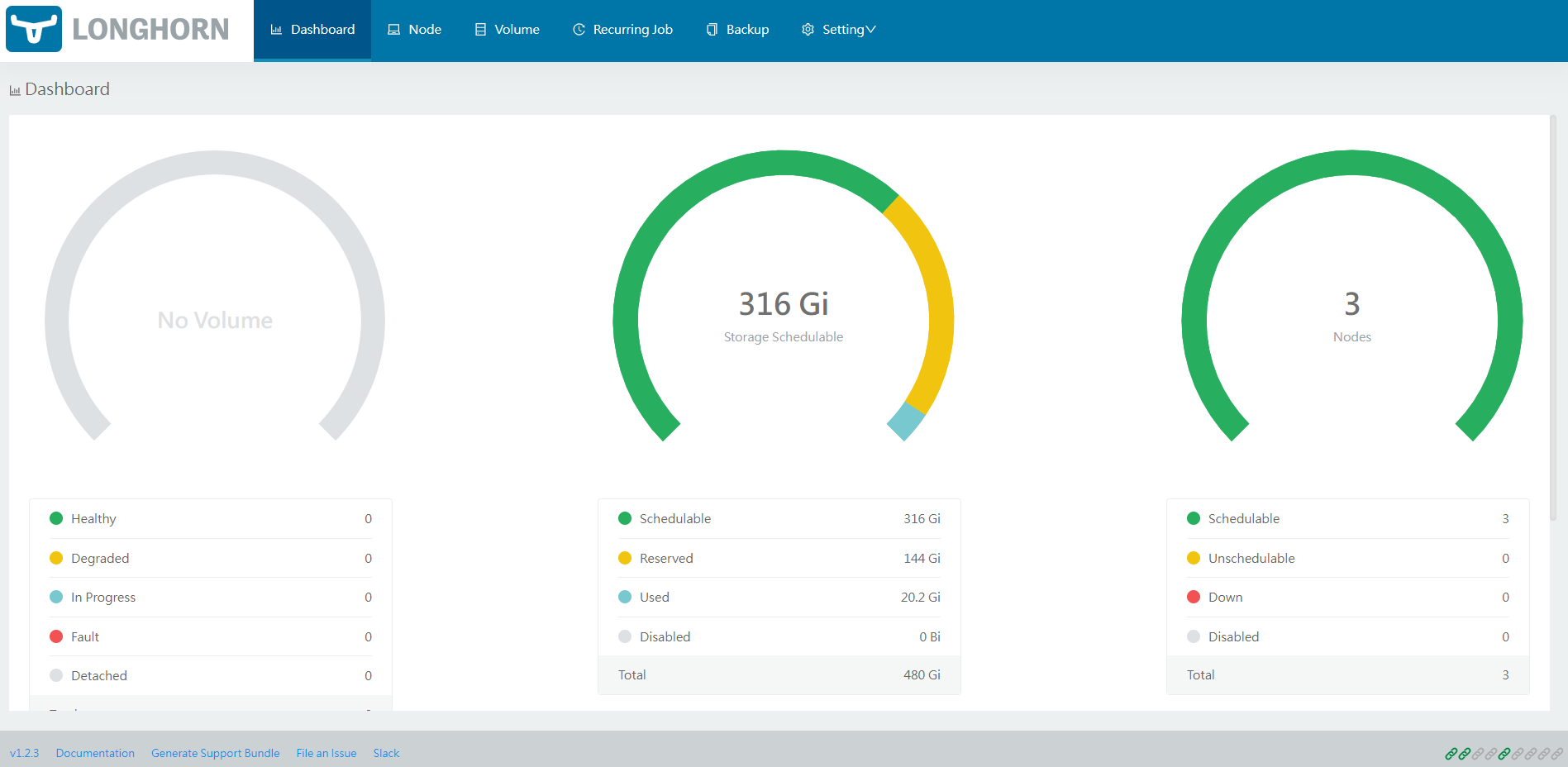
...
LH can be installed on a Kubernetes cluster in several ways: Rancher catalog app, kubectl or Helm. In this guide we will focus on the installation via Helm chart, which must of course be installed. However, for further details, please refer to the official guide.
Requirements
Each node in the Kubernetes cluster where LH is installed must fulfill the following requirements:
- A container runtime compatible with Kubernetes (Docker v1.13+, containerd v1.3.7+, etc.).
- Kubernetes v1.16+ (recommend Kubernetes v1.17+)18+.
open-iscsi is installed, and the iscsid daemon is running on all the nodes. This is necessary, since LH relies on iscsiadm on the host to provide persistent volumes to Kubernetes.
Code Block language bash title Install iscsi collapse true # If not present, launch the command $ sudo yum --setopt=tsflags=noscripts install iscsi-initiator-utils -y # Then enable and start the daemon $ sudo systemctl enable iscsid $ sudo systemctl start iscsid
RWX support requires that each node has a NFSv4 client installed.
Code Block language bash title Install nfs-utils collapse true # If not present, launch the command $ sudo yum install nfs-utils -y
The host filesystem supports the file extents feature to store the data. Currently we support ext4 and XFS.
Code Block language bash title Filesystem type collapse true # Check that the database type is "xfs" or "ext4" $ df -T $ df -ThTh | grep /dev/vd Filesystem Type Size Used Avail Use% Mounted on /dev/vda1 xfs 80G 5.0G 76G 7% /
- curl, findmnt, grep, awk, blkid, lsblk must be installed.
Mount propagation must be enabled.
Code Block language bash title Mount propagation collapse true # Insert the following lines into the file "/etc/systemd/system/docker.service.d/mount_propagation_flags.conf" [Service] MountFlags=shared # Then restart the service $ sudo systemctl daemon-reload $ sudo systemctl restart docker.service
...
| Code Block | ||||||
|---|---|---|---|---|---|---|
| ||||||
$ curl -sSfL https://raw.githubusercontent.com/longhorn/longhorn/v1.13.20/scripts/environment_check.sh | bash daemonset.apps/[INFO] Required dependencies are installed. [INFO] Waiting for longhorn-environment-check created waiting for pods to become ready (0/30) all... [INFO] All longhorn-environment-check pods are ready (3/3). [INFO] Required packages are installed. [INFO] MountPropagation is enabled! cleaning up... daemonset.apps ". [INFO] Cleaning up longhorn-environment-check" deleted clean up completepods... [INFO] Cleanup completed. |
Installation with Helm
Add the LH Helm repository and fetch the latest charts from the repository
...
| Code Block | ||||
|---|---|---|---|---|
| ||||
kubectl create namespace longhorn-system helm install longhorn longhorn/longhorn --namespace# Use the --create-namespace flag, if the namespace does not exist $ helm install longhorn longhorn/longhorn --namespace longhorn-system [--create-namespace] # Upgrade or uninstall chart $ helm upgrade <chart_name> longhorn/longhorn -n longhorn-system $ helm uninstall <chart_name> -n longhorn-system |
The initial settings for Longhorn can be customized using Helm options or by editing the deployment configuration file. To obtain a copy of the values.yaml file
| Code Block | ||||||
|---|---|---|---|---|---|---|
| ||||||
$ helm show values longhorn/longhorn > values.yaml # Modify the default settings in the YAML file and then add flag "--values values.yaml" in the install command $ helm install longhorn longhorn/longhorn --namespace longhorn-system --values values.yaml |
...
| Code Block | ||||||
|---|---|---|---|---|---|---|
| ||||||
$ kubectl -n longhorn-system get pod NAME READY STATUS RESTARTS AGE csi-attacher-5f46994f7-4t8dn 1/1 RESTARTS Running 0 AGE82s compatible-csi-attacher-d9fb48bcf5f46994f7-2rzmbl6gjl 1/1 Running 1/1 Running 0 8m58s81s csi-attacher-78bf9b98985f46994f7-grn2ctkz4p 1/1 Running 0 81s csi-provisioner-6ccbfbf86f-78gvc 1/1 Running 0 32s81s csi-attacherprovisioner-78bf9b9898-lfzvq 6ccbfbf86f-psrt2 1/1 Running 0 81s csi-provisioner-6ccbfbf86f-zccxt 1/1 Running 0 81s csi-resizer-6dd8bd4c97-462sd 1/1 Running 0 8m59s81s csi-attacherresizer-78bf9b98986dd8bd4c97-r64svjls9w 1/1 Running 0 81s csi-resizer-6dd8bd4c97-kn5bb 1/1 Running 0 33s81s csi-provisionersnapshotter-8599d5bf9786f65d8bc-c8r792968g 1/1 Running 0 81s csi-snapshotter-86f65d8bc-8ptsr 1/1 Running 0 33s81s csi-provisionersnapshotter-8599d5bf9786f65d8bc-fc5pzvgrr4 1/1 Running 0 81s engine-image-ei-fa2dfbf0-fd4kj 1/1 Running 0 33s109s csiengine-image-provisionerei-8599d5bf97fa2dfbf0-p9pslhcv8p 1/1 Running 0 109s engine-image-ei-fa2dfbf0-q7qdt 1/1 Running 0 8m59s109s csiinstance-resizermanager-586665f745e-b7p6h23cd97d9 1/1 Running 0 109s instance-manager-e-275b5e10 1/1 Running 0 8m59s100s csiinstance-resizermanager-586665f745e-kgdxsfdd447fd 1/1 Running 0 105s instance-manager-r-17584df4 1/1 Running 0 33s109s csiinstance-resizermanager-586665f745r-vsvvq2a170a69 1/1 Running 0 100s instance-manager-r-544a80b6 1/1 Running 0 33s104s enginelonghorn-imagecsi-ei-e10d6bf5-pv2s6plugin-5qmqv 12/12 Running 0 80s longhorn-csi-plugin-hqpcm 2/2 Running 0 9m30s80s instancelonghorn-managercsi-eplugin-379373afsb5nf 12/12 Running 0 80s longhorn-driver-deployer-6db849975f-cjjnj 1/1 Running 0 8m41s2m15s instancelonghorn-manager-r-101f13ba4k7p7 1/1 Running 1 2m15s longhorn-manager-pvd2b 1/1 Running 0 8m40s2m15s longhorn-csi-plugin-7v2dcmanager-rh99r 41/41 Running 1 2m15s longhorn-ui-6f547c964-7vbl4 1/1 Running 0 2m15s |
Accessing the UI
| Info | ||
|---|---|---|
| ||
These instructions assume that LH and a ingress controller (i.e. Nginx, Traefik) are installed, of course. |
Once LH has been installed in your Kubernetes cluster, you can access the UI dashboard. First let's see which service we need to connect our ingress controller to. So let's use
| Code Block | ||||||
|---|---|---|---|---|---|---|
| ||||||
# The service we are interested in is 8m59s "longhorn-driver-deployer-775897bdf6-k4sfdfrontend" $ kubectl -n longhorn-system get svc NAME 1/1 Running TYPE CLUSTER-IP 0 EXTERNAL-IP PORT(S) 10mAGE longhorn-manager-79xgjbackend ClusterIP 10.233.28.215 <none> 9500/TCP 1/124h longhorn-frontend ClusterIP Running 10.233.63.167 <none> 80/TCP 0 24h |
At this point we can build the ingress resource, as usual
| Code Block | ||||||
|---|---|---|---|---|---|---|
| ||||||
apiVersion: networking.k8s.io/v1 kind: Ingress metadata: name: 9m50s longhorn-ui-9fbb5445-httqf longhorn-ingress namespace: longhorn-system spec: # tls: # Uncomment this part if you have the secret # - hosts: # - <host> # secretName: <secret> rules: - host: <host> http: paths: - path: 0/1 Running/ pathType: Prefix backend: service: name: longhorn-frontend port: 0 33snumber: 80 |