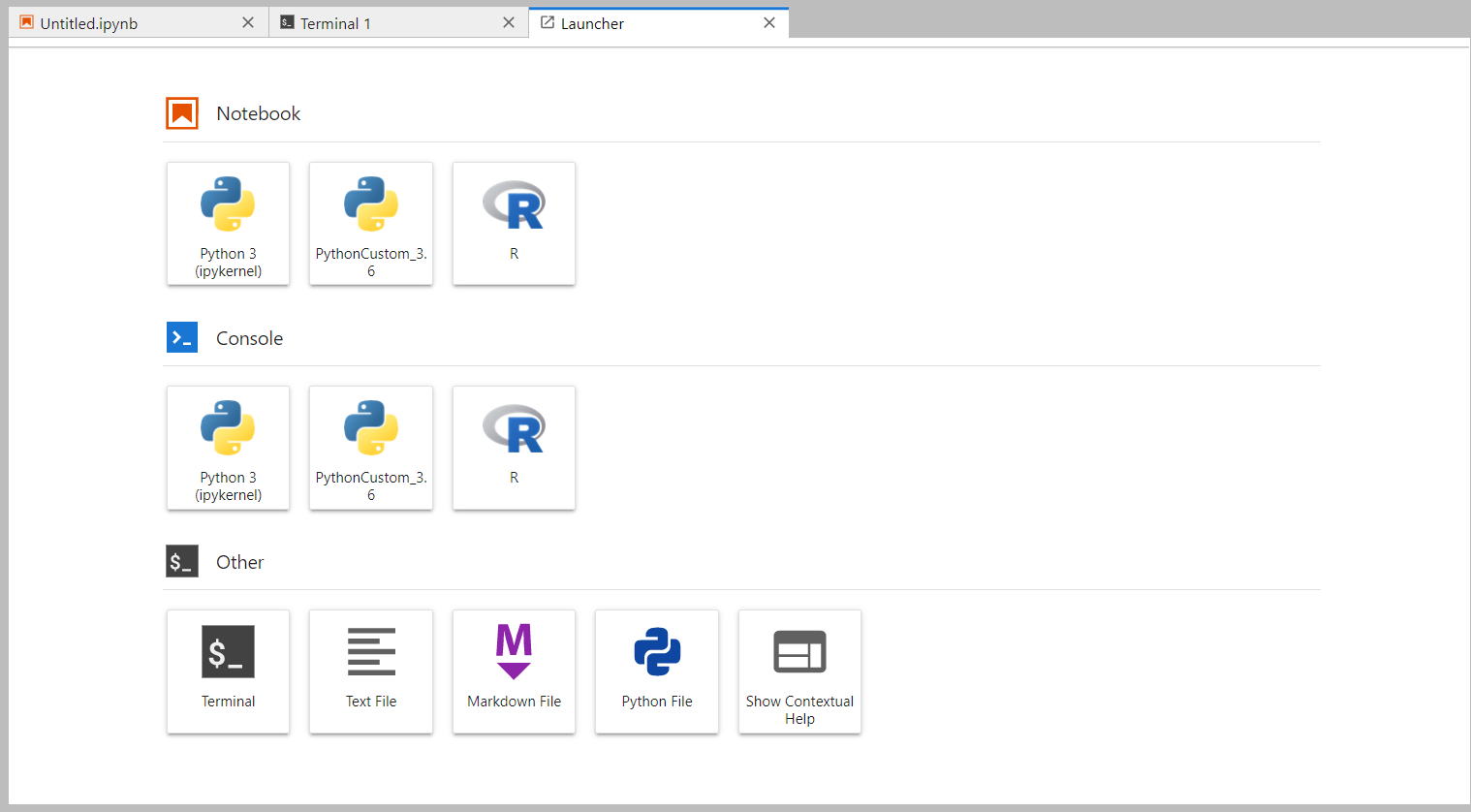
At Tier-1 it's now possible to use Jupyter notebooks served by JupyterHub. The service is reachable via browser at the following page: https://jupyterhub-t1.cr.cnaf.infn.it/
...
When you login, the Hub service submits a local HTCondor job which is named jupyter-<username>. You can check its status from your user interface as a local job submitted on the sn01-htc, with the following command:
| Code Block |
|---|
| language | bash |
|---|
| theme | Midnight |
|---|
|
-bash-4.2$ condor_q -name sn01-htc


-- Schedd: sn01-htc.cr.cnaf.infn.it : <131.154.192.42:9618?... @ 01/13/22 17:50:38
OWNER           BATCH_NAME                 SUBMITTED   DONE   RUN    IDLE  TOTAL JOB_IDS
dlattanzioauger jupyter-dlattanzioauger   1/13 17:47      _      1      _      1 1035919.0

Total for query: 1 jobs; 0 completed, 0 removed, 0 idle, 1 running, 0 held, 0 suspended
Total for dlattanzioauger: 1 jobs; 0 completed, 0 removed, 0 idle, 1 running, 0 held, 0 suspended
Total for all users: 25632 jobs; 12551 completed, 0 removed, 10796 idle, 2174 running, 111 held, 0 suspended |
...
Here's the Home page that you will see after the job went running:
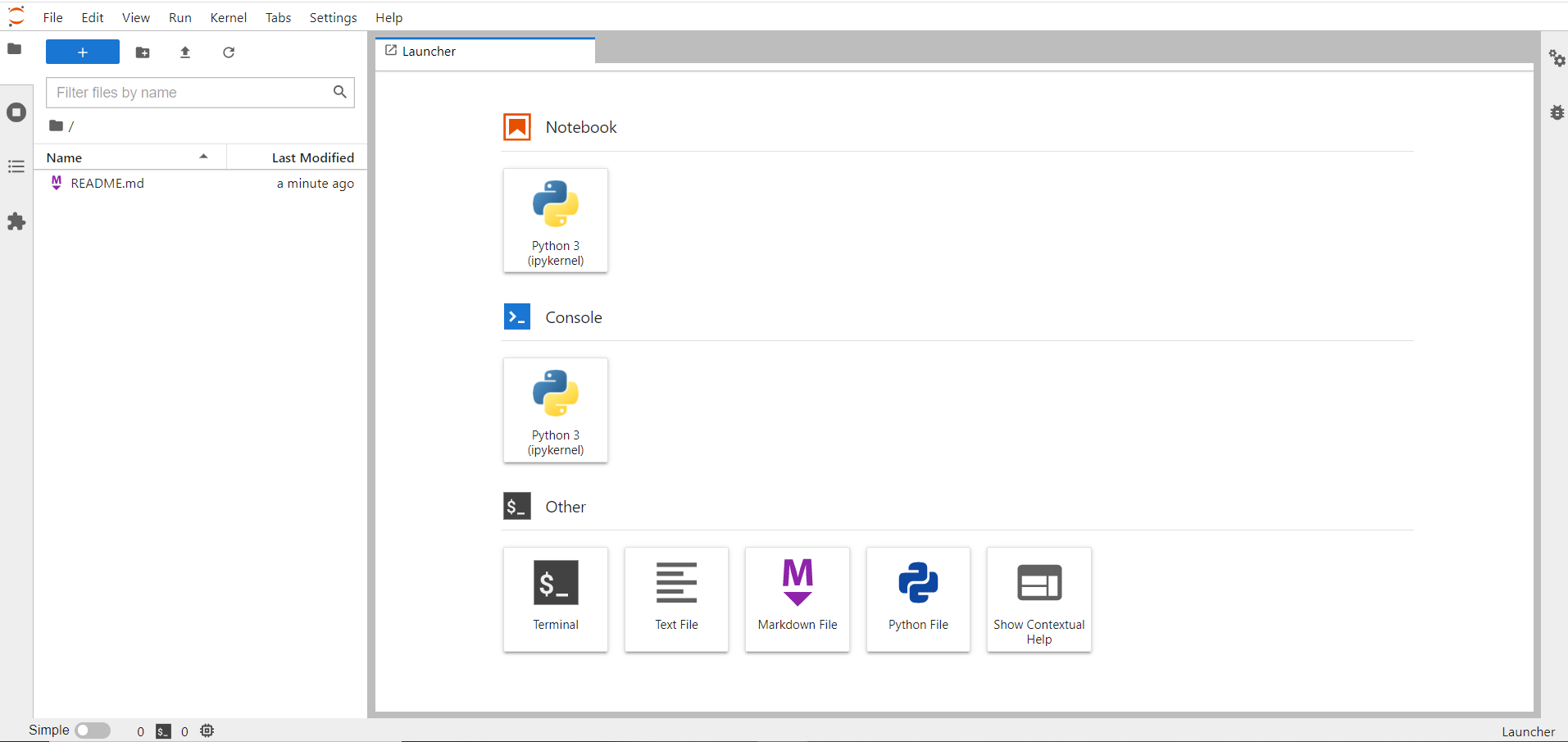 Image Removed
 Image Added
From this page, it is possible to browse through the different tools, for instance you can open a new Python notebook or a bash shell:
...
2) The second way is removing the job by using the usual HTCondor command used for local jobs. For instance, run from the ui:
| Code Block |
|---|
| language | bash |
|---|
| theme | Midnight |
|---|
|
$ condor_rm -name sn01-htc -cons 'JobBatchName=="jupyter-dlattanzioauger"'
All jobs matching constraint (JobBatchName=="jupyter-dlattanzioauger") have been marked for removal |
Check that job has been succesfully removed:
| Code Block |
|---|
| language | bash |
|---|
| theme | Midnight |
|---|
|
-bash-4.2$ condor_q -name sn01-htc


-- Schedd: sn01-htc.cr.cnaf.infn.it : <131.154.192.42:9618?... @ 01/13/22 18:44:25
OWNER BATCH_NAME      SUBMITTED   DONE   RUN    IDLE   HOLD  TOTAL JOB_IDS

Total for query: 0 jobs; 0 completed, 0 removed, 0 idle, 0 running, 0 held, 0 suspended
Total for dlattanzioauger: 0 jobs; 0 completed, 0 removed, 0 idle, 0 running, 0 held, 0 suspended
Total for all users: 31480 jobs; 13169 completed, 0 removed, 15852 idle, 2352 running, 107 held, 0 suspended |
| Anchor |
|---|
| File persistency and quota |
|---|
| File persistency and quota |
|---|
|
File persistency and quotaThere are three distinct levels of file persistency:
...
| Anchor |
|---|
| User environment customization |
|---|
| User environment customization |
|---|
|
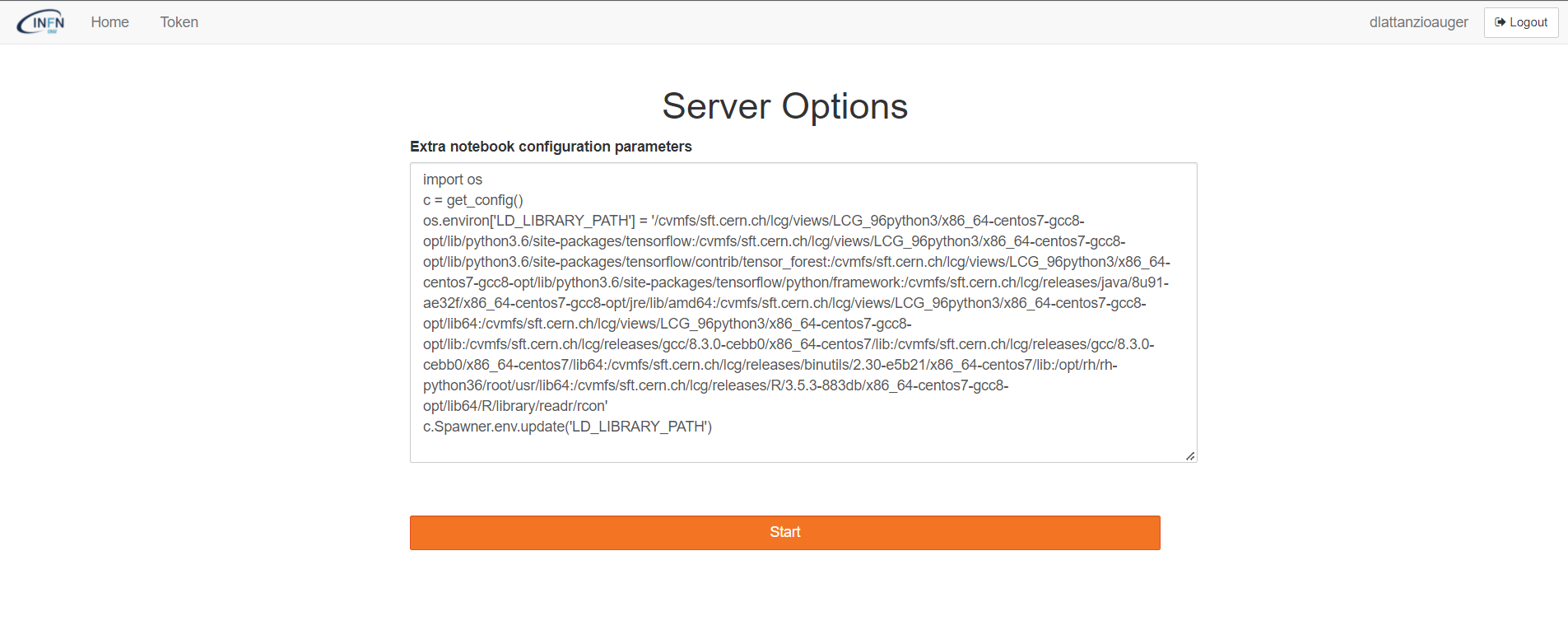
User environment customizationIf a user needs to customize the owner environment, it has to explain the content of a python configuration file in the specific window at the login web page.
For example, in order to load the CVMFS path the user should explain the right instructions as in the picture below.
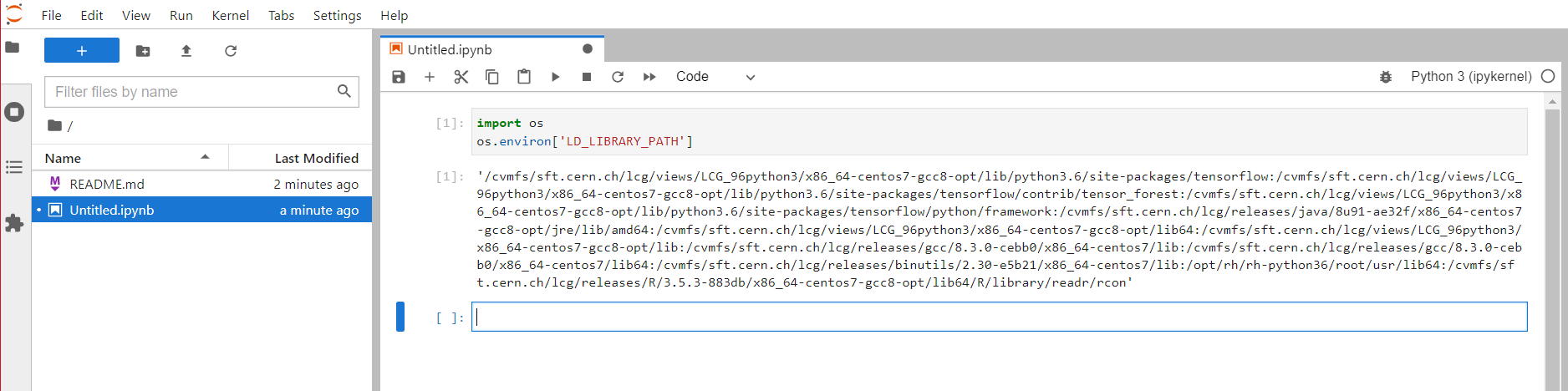
Indeed, in this case the LD_LIBRARY_PATH is properly loaded inside of the jupyter notebook.
N.B. This procedure cannot work if the jupyter notebook is already running.
...
| Micromamba environment creation |
|---|
|
...
| Micromamba environment creation |
|---|
|
...
Micromamba environment creation
During the Jupyter notebook excecution, it is possible to create a Conda micromamba environment by installing different packages like another Python version. For instance, you can issue the following commands:
| Code Block |
|---|
| language | bash |
|---|
| theme | Midnight |
|---|
|
%mamba%conda create -n test -y python=3.613

%conda%mamba run -n test pip install ipykernel

%conda%mamba run -n test python -m ipykernel install --user --name python3.613 --display-name PythonCustom_3.613 |
N.B. If you had previously the jupyter environment, before launching the above commands, you need to import again the proper environment variable:
| Code Block |
|---|
| language | bash |
|---|
| theme | Midnight |
|---|
|
import os
os.environ['LD_LIBRARY_PATH']='' |
At this point, you will see a new shortcut to a new notebook which contains the new PythonCustom_3.6 conda mamba environment.
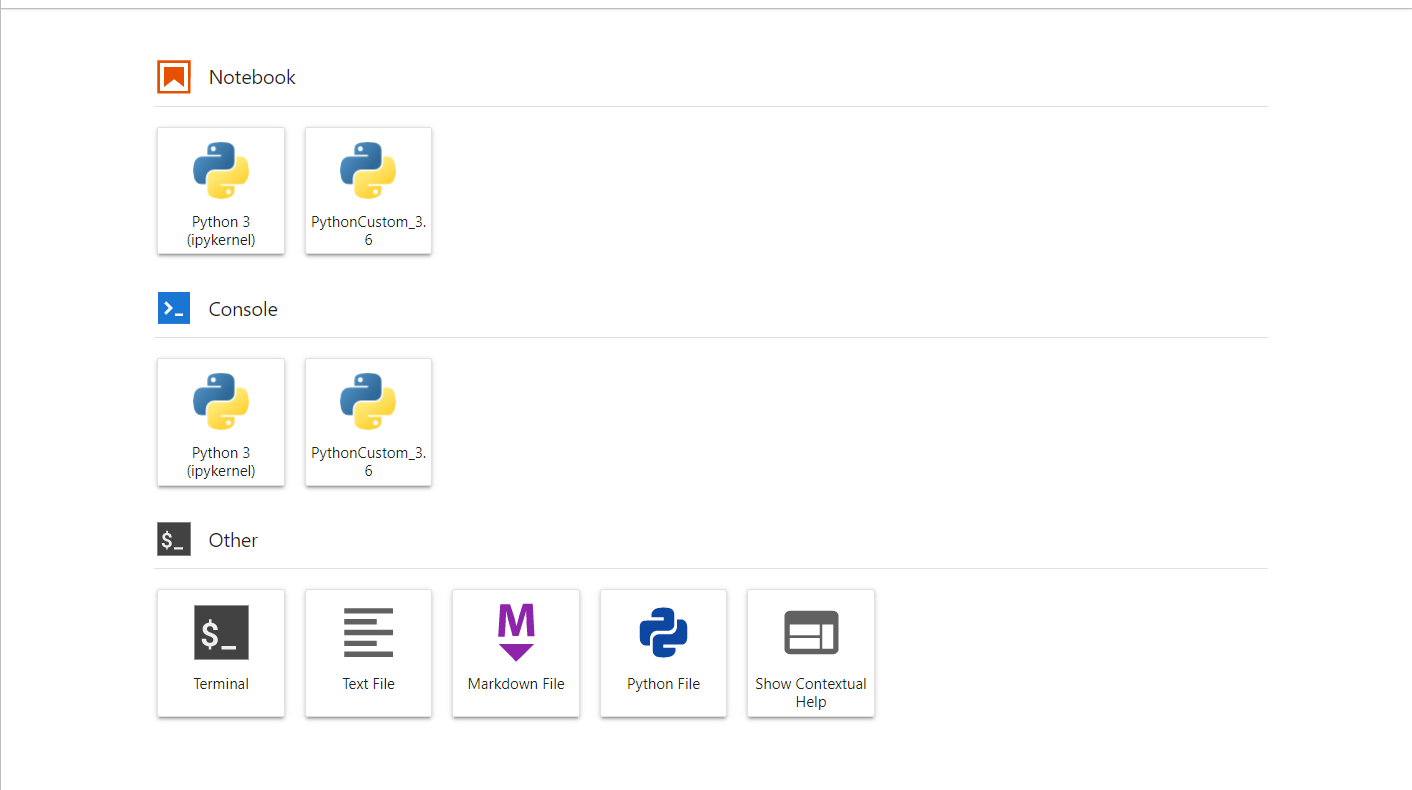
For example, inside this new notebook, you can launch the ROOT software:
| Code Block |
|---|
| language | bash |
|---|
| theme | Midnight |
|---|
|
import sys
sys.path.append('/cvmfs/sft.cern.ch/lcg/views/LCG_96python3/x86_64-centos7-gcc8-opt/lib/python3.6/site-packages/')
sys.path.append('/cvmfs/sft.cern.ch/lcg/views/LCG_96python3/x86_64-centos7-gcc8-opt/lib')
import ROOT |
Welcome to JupyROOT 6.18/00
| Anchor |
|---|
| Software installation in a |
|---|
|
...
| micromamba environment | | Software installation in a |
|---|
|
...
Software installation in a ...
micromamba environment
After having issued a proper conda mamba environment, the user has to activate it in order to use it from the CLI:
| Code Block |
|---|
| language | bash |
|---|
| theme | Midnight |
|---|
|
Singularity> condamamba activate test |
N.B. In order to avoid the following error:
| Code Block |
|---|
| language | bash |
|---|
| theme | Midnight |
|---|
|
Singularity> condamamba activate test
/usr/bin/python3: symbol lookup error: /usr/bin/python3: undefined symbol: _Py_LegacyLocaleDetected
Singularity> |
...
The user needs to unset the LD_LIBRARY_PATH environment variable:
| Code Block |
|---|
| language | bash |
|---|
| theme | Midnight |
|---|
|
Singularity> unset LD_LIBRARY_PATH
Singularity> condamamba activate test
(test) Singularity> Singularity> |
At this point, it is possible for example to install a software like R:
| Code Block |
|---|
| language | bash |
|---|
| theme | Midnight |
|---|
|
(test) Singularity> condamamba install R |
and then it can be executed:
| Code Block |
|---|
|
(test) Singularity> R

R version 3.6.1 (2019-07-05) -- "Action of the Toes"
Copyright (C) 2019 The R Foundation for Statistical Computing
Platform: x86_64-conda_cos6-linux-gnu (64-bit)

R is free software and comes with ABSOLUTELY NO WARRANTY.
You are welcome to redistribute it under certain conditions.
Type 'license()' or 'licence()' for distribution details.

R is a collaborative project with many contributors.
Type 'contributors()' for more information and
'citation()' on how to cite R or R packages in publications.

Type 'demo()' for some demos, 'help()' for on-line help, or
'help.start()' for an HTML browser interface to help.
Type 'q()' to quit R.

> |
After the R installation, the user can install the native R kernel for Jupyter:
| Code Block |
|---|
| language | bash |
|---|
| theme | Midnight |
|---|
|
> install.packages('IRkernel') |
During the installation, the user will be prompted with a list of different countries. For a quicker installation, the nearest can be chosen.
At this point, running the following command, a new R shortcut will be available on the main Jupyter dashboard:
| Code Block |
|---|
|
IRkernel::installspec() |