 Source tab
Instances are virtual machines that run inside the cloud. You can launch an instance from the following sources:
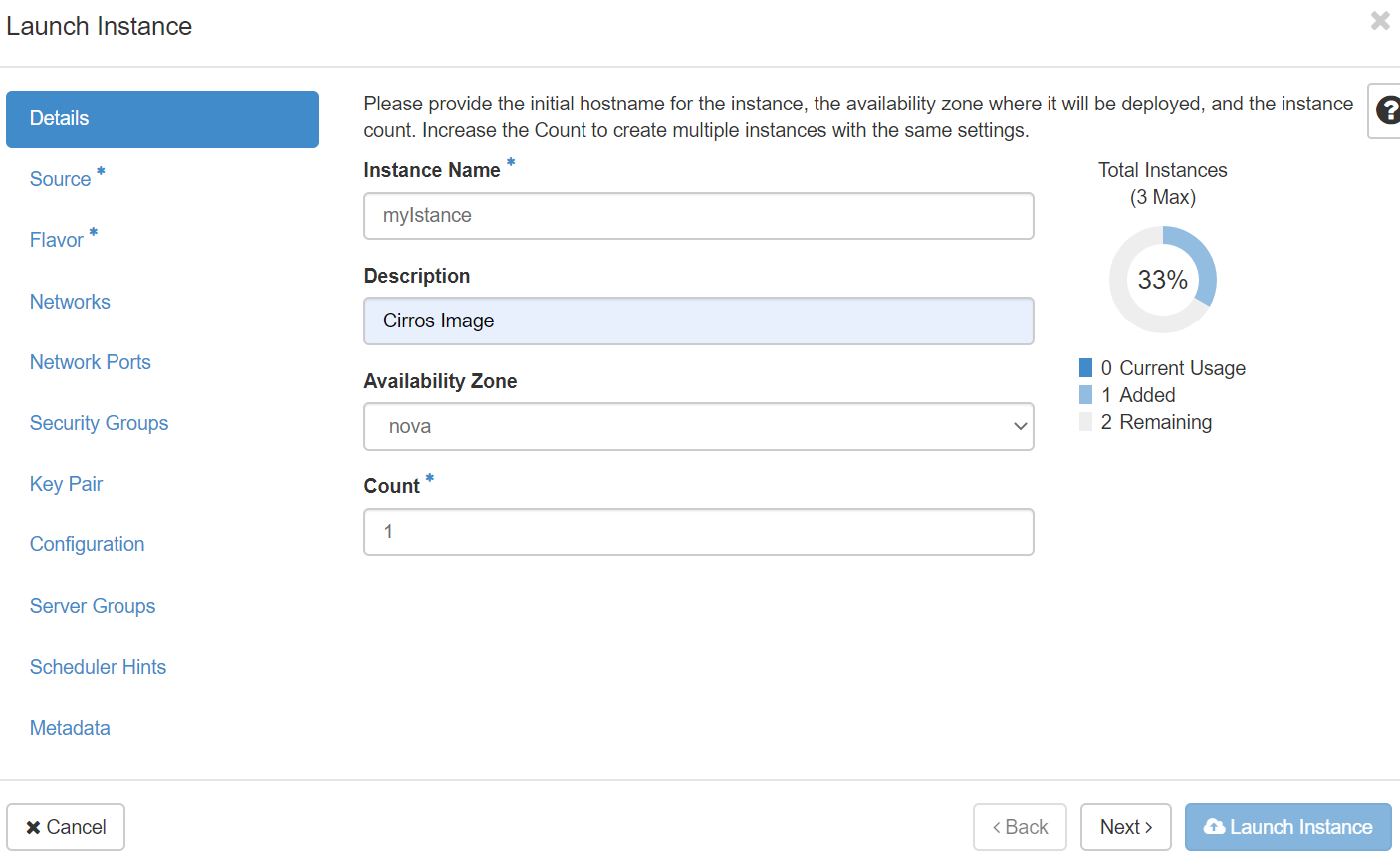
Details tab
Instance Name: Assign a name to the virtual machine.
Description: You can assign a brief description of the virtual machine.
Availability Zone: By default, this value is set to the availability zone given by the cloud provider (for example, us-west or apac-south). For some cases, it could be nova.
Count: To launch multiple instances, enter a value greater than 1. The default is 1.
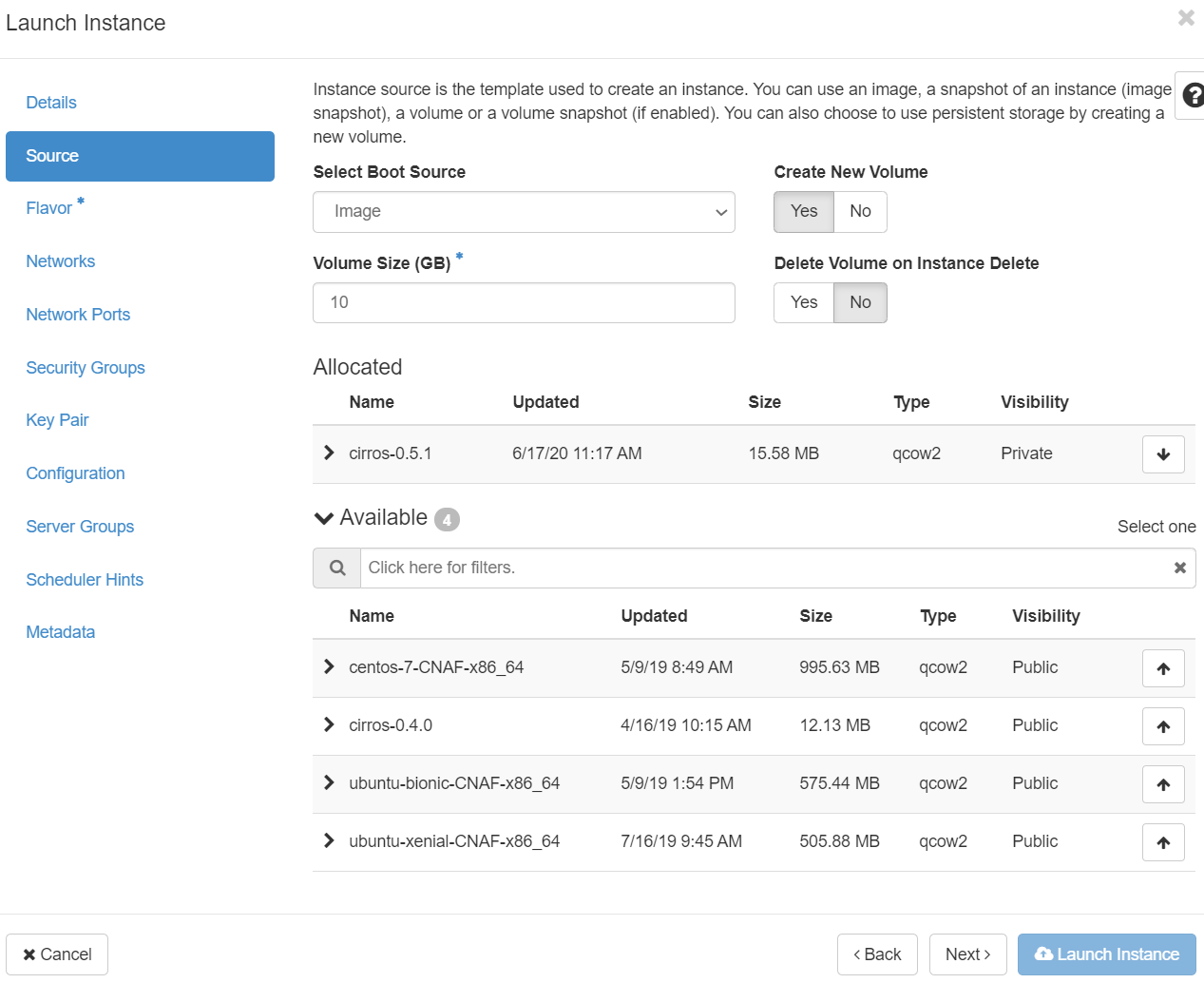
Source tab
In the drop down menu Select Boot Source your options are:
Click the Delete Volume on Instance Delete option to delete the volume on deleting the instance. This option is allowed when the volume is created by default or by your choice (i.e. if the Create New Volume option is set to yes).
Flavor tab
Flavor: Specify the size of the instance to launch.
Note: The flavor is selected based on the size of the image selected for launching an instance. For example, while creating an image, if you have entered the value in the Minimum RAM (MB) field as 2048, then on selecting the image, the default flavor is m1.small.
Networks tab
Networks: To add a network to the instance, click the ↑ in the Available field.
Network Ports tab
Ports: Activate the ports that you want to assign to the instance.
Security Groups tab
Security Groups: Activate the security groups that you want to assign to the instance. Security groups are a kind of cloud firewall that define which incoming network traffic is forwarded to instances. If you have not created any security groups, you can assign only the default security group to the instance.
Key Pair tab
Key Pair: Specify a key pair. If the image uses a static root password or a static key set (neither is recommended), you do not need to provide a key pair to launch the instance.
Configuration tab
Customization Script Source: Specify a customization script that runs after your instance launches. Here you can find an example of cloud config.
Metadata tab
Available Metadata: Add Metadata items to your instance.
Click Launch Instance. The instance starts on a compute node in the cloud.
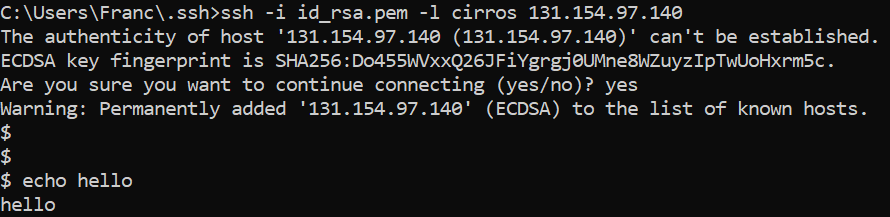
To use SSH to connect to your instance, use the downloaded Key Pair file.
Use the SSH command to make a secure connection to the instance. For example:
$ ssh -i <key_path>/<key_name> -l <operating_system_users> <FloatingIP> |
Let's see some examples.
A snapshot of a Virtual Machine is an image which preserves the disk state of that running instance. Snapshots can be used e.g. to backup your instances, or to migrate your instances to another cloud.
The Images category shows the instance snapshot. To launch an instance from the snapshot, select the snapshot and click Launch. Proceed with launching an instance.
Pause Instance/Unpause Instance allows for temporary suspension of the VM. The VM is kept in memory but it is not allocated any CPU time.
Suspend Instance/Resume Instance stores the VM onto disk and recovers it later. This is faster than stop/start and the VM returns to the status is was when the suspend was performed as opposed to a new boot cycle.
The cleanest way to shutdown (or reboot) an instance is however to log on the VM and issue from the shell the shutdown or reboot command. In fact if the Soft Reboot Instance or Hard Reboot Instance or Shut Off Instance actions are chosen, there could be problems with networking when the VM is later restarted. |
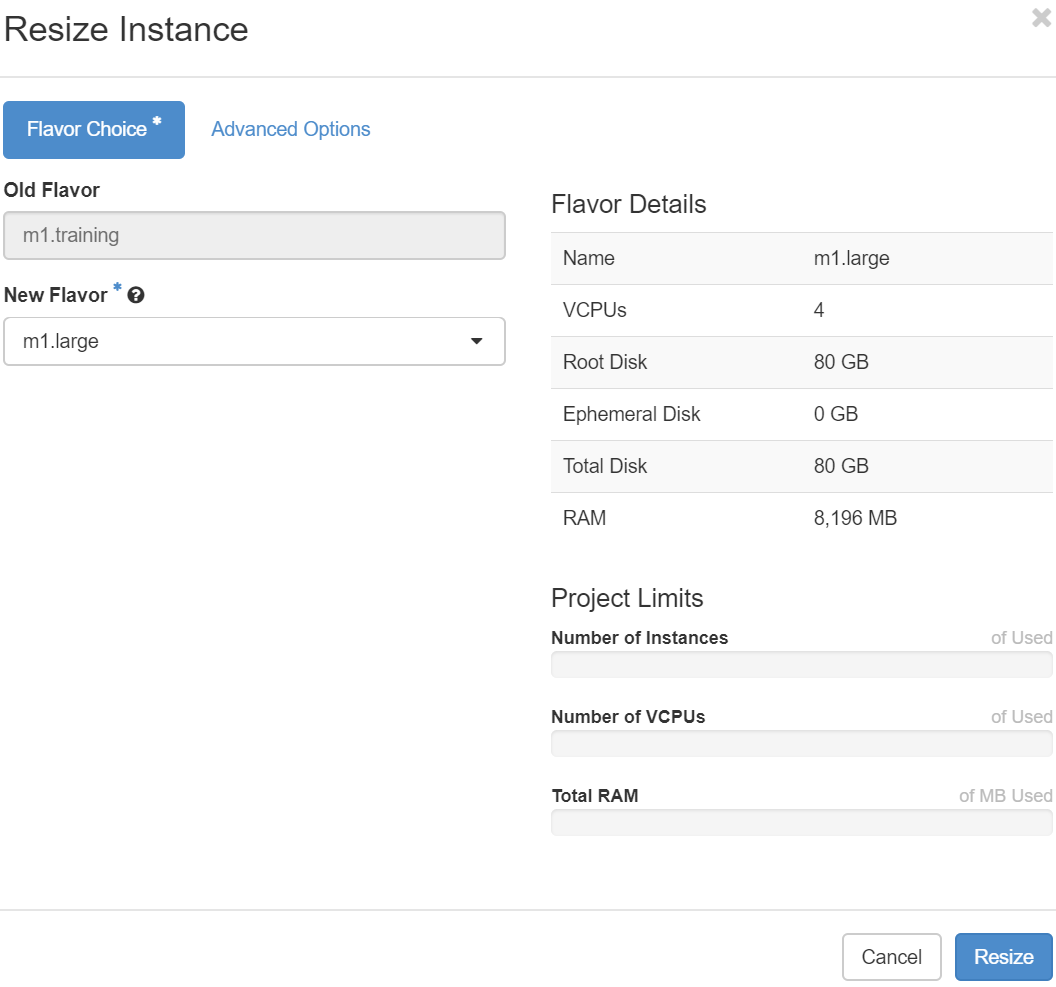
If the size of a virtual machine needs to be changed, such as adding more memory or cores, this can be done using the resize operation. Using resize, you can select a new flavor for your virtual machine. The operation will reboot the virtual machine and might take several minutes of downtime, so this operation should be planned as it will lead to application downtime.
To resize an instance:
The status will then change to Active once completed.
You can track usage for instances for each project. You can track costs per month by showing meters like number of vCPUs, disks, RAM, and uptime for all your instances.