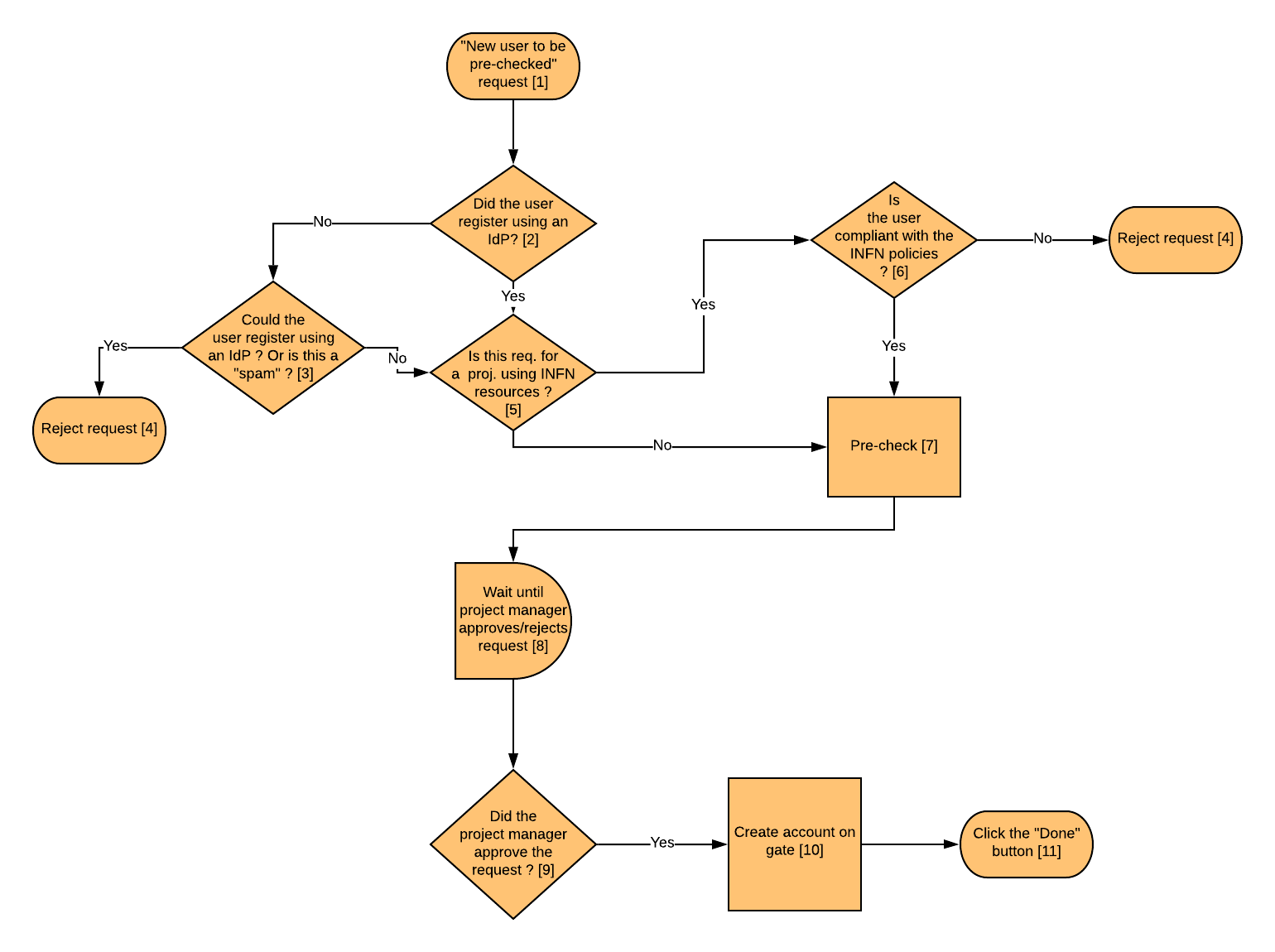
This howto explains how to manage the "New user to be pre-checked" i.e. requests for a user to register to the Cloud and asking for the affiliation to an existing project.
The procedure to be followed is described in the following flowchart
Details on the single steps are described below
To manage a user registration request, log as admin in the Dashboard and click on Admin → Identity panel → Registrations. You will see the list of the pending requests.
Select the relevant request and click on Action → Details to see all the information concerning the request
Supported IdPs are INFN-AAI and Unipd SSO
If a user registered via INFN-AAI, the proposed user name is something like user@infn.it. If the username is somehow weird (e.g. TF-18555@infn.it), before pre-checking the request, please contact the Servizio Calcolo @ INFN Padova to check if this is normal or if they need to fix something in the INFN-AAI account of this person)
You can check if a user registered via the Unipd Idp (Unipd SSO) if the proposed user name is something like user@unipd.it or user@studenti.unipd.it.
If the user didn't try the registration using an IdP. In this case you should try to figure out if the user really can't register through a supported IDP.
Other hints:
In general you might need to interact with the user (via e-mail) to understand why she didn't/she couldn't register using an IdP (and also to understand if the request is "valid" and is not a spam)
Select the relevant request and click on Action → Reject.
In the message field you might need to motivate the decision (e.g. if the request is coming from a user that could use an IdP, asks him/her to re-register, but using INFN-AAI / Unipd SSO)
If the request is rejected because this is a request for an INFN project and the user is not compliant with the INFN policies, please tell the user to follow the procedure described at: http://userguide.cloudveneto.it/en/latest/Registration.html#prerequisites-for-using-infn-resources
Please also discuss with the user, via e-mail, about the problem
Log as admin in the Dashboard and click on Admin → Identity panel → Projects.
The project is a INFN project if it has the "O=infn.it" tag
To be compliant with the INFN policies the user must be registered in INFN-AAI and:
Actually the third bullet is not a strict requirement: if all the requirements but the last one are met, the request can be accepted, but please notify the user that he/she must follow the course within 30 days.
To check e.g. if the user whose family name is 'Sgaravatto' is compliant with all the 3 rules, you can execute this ldapsearch query:
$ ldapsearch -x -LLL -Z -h ds2.infn.it -b ou=People,dc=infn,dc=it "(&(sn=*sgaravatto*)(eduPersonAssurance=urn:mace:infn.it:loa2)(schacUserStatus=urn:schac:userStatus:it:infn.it:disciplinareict:approvato+on=*)(schacUserStatus=urn:schac:userStatus:it:infn.it:formazione:sicurezzainformatica-base:superato+on*))" |
This will return a result, only if the 3 requirements are met
l: pd givenName: Massimo sn: Sgaravatto cn: Massimo Sgaravatto telephoneNumber: +390499677360 mail: Massimo.Sgaravatto@pd.infn.it |
If a result is not returned, check if the first 2 requirement (the "LoA2: stuff and if the user has accepted the INFN rules on IT resource usage). The query will be:
$ ldapsearch -x -LLL -Z -h ds2.infn.it -b ou=People,dc=infn,dc=it "(&(sn=sgaravatto)(eduPersonAssurance=urn:mace:infn.it:loa2)(schacUserStatus=urn:schac:userStatus:it:infn.it:disciplinareict:approvato+on=*))" |
If a result is returned, this means that the user didn't follow the course. In this case the request can be accepted, but please notify the user via e-mail that he/she must follow the course within 30 days.
The text of the e-mail can be something like:
We received your request for registration for CloudVeneto infrastructure .
Since you requested the access to INFN resources, please note what is reported at:

http://userguide.cloudveneto.it/en/latest/Registration.html#prerequisites-for-using-infn-resources

In particular we noticed that you didn't follow the IT Security course. This must be done within 30 days.
To follow the course, please go to:

https://elearning.infn.it/course/view.php?id=105

Regards
The CloudVeneto support team
Select the relevant request and click on Action → Pre check.
If the user register using user-password (i.e. not through an Idp) you might need to change the user name. In general the user name should be the family name, or "contains" part of the family name
E.g. for user Mario Rossi, valid user name could be "mrossi", "mariorossi", "rossi" ("mario", "sonofigo", "wjuve" are instead not acceptable as username)
After the pre-check, the Description field will be "User requires membership"
The request will have to be managed by the relevant project (tenant) manager(s).
support AT cloudveneto.it will be notified when this is done.
At that point the user registration request status will be "User requires post registration actions":
You now need to create the user on the gate machine. This must be done for each user, even if he/she doesn't need it.
Login with your personal account in gate.cloudveneto.it
Acquire root privileges:
sudo su - |
Execute the script:
add-user-gate <USERNAME> <USER_EMAIL> |
(e.g. add-user-gate pmazzon paoloemilio.mazzon@unipd.it)
The username on the gate will be the first char of name with the surname for a maximum of 8 characters (modulo conflicts). Examples:
To find the user email, select on the dashboard the relevant request and click on Action → Details.
Select on the dashboard the relevant request and click on Action → Done.
Related articles appear here based on the labels you select. Click to edit the macro and add or change labels.
|