The Rook toolbox is a container with common tools used for rook debugging and testing. The rook toolbox can run as a deployment in a Kubernetes cluster where you can connect and run arbitrary Ceph commands. Launch the rook-ceph-tools pod and enter inside
# The file is located in the folder "rook/deploy/examples" $ kubectl create -f toolbox.yaml # Once the rook-ceph-tools pod is running, you can connect to it with $ kubectl -n rook-ceph exec -it deploy/rook-ceph-tools -- bash |
Once inside the Pod you can check the status of the Ceph cluster with
# For the complete list of arguments use "ceph -h"
$ ceph status
  cluster:
    id:     ac25fc89-881e-419c-8596-be26252f8b92
    health: HEALTH_OK
  services:
    mon: 3 daemons, quorum a,b,c (age 93m)
    mgr: a(active, since 6h)
    osd: 3 osds: 3 up (since 6h), 3 in (since 6h)
  data:
    pools:   1 pools, 1 pgs
    objects: 0 objects, 0 B
    usage:   3.0 GiB used, 117 GiB / 120 GiB avail
    pgs:     1 active+clean

$ ceph osd status
ID  HOST                     USED  AVAIL  WR OPS  WR DATA  RD OPS  RD DATA  STATE
 0  k8s-worker-3.novalocal  1028M  38.9G      0        0       0        0   exists,up
 1  k8s-worker-2.novalocal  1028M  38.9G      0        0       0        0   exists,up
2 k8s-worker-1.novalocal 1028M 38.9G 0 0 0 0 exists,up |
When you are done with the toolbox, you can remove the deployment with
$ kubectl -n rook-ceph delete deploy/rook-ceph-tools |
The dashboard is a very helpful tool to give you an overview of the status of your Ceph cluster, including overall health, status of the mon quorum, status of the mgr, osd, and other Ceph daemons, view pools and PG status, show logs for the daemons, and more.
The dashboard is enabled by default, if you have not modified the cluster.yaml file. If this is true, doing a get of the services, you should get output similar to the following. The first service is for reporting the Prometheus metrics, while the latter service is for the dashboard.
$ kubectl -n rook-ceph get service -l app=rook-ceph-mgr NAME TYPE CLUSTER-IP EXTERNAL-IP PORT(S) AGE rook-ceph-mgr ClusterIP 10.100.94.175 <none> 9283/TCP 7h48m rook-ceph-mgr-dashboard ClusterIP 10.100.94.135 <none> 8443/TCP 7h48m |
The simplest way to expose the service is using the NodePort to open a port on the VM that can be accessed by the host. To create a service with the NodePort, use the dashboard-ingress-https.yaml file, present in the same directory as the toolbox. Once the service is implemented, a port will be generated, in the range between 30000-32767, which you will have to open on OpenStack. As mentioned several times, you can choose a port yourself, always in the above range, by inserting the spec.ports.nodePort: <port> parameter in the .yaml file.
Using a browser, connect to the address https://<Master_FIP>:<port>. After you connect to the dashboard you will need to login for secure access. Rook creates a default user named admin and generates a secret called rook-ceph-dashboard-admin-password in the namespace where the Rook Ceph cluster is running. To retrieve the generated password, you can run the following
$ kubectl -n rook-ceph get secret rook-ceph-dashboard-password -o jsonpath="{['data']['password']}" | base64 --decode && echo |
Each Rook Ceph cluster has some built in metrics collectors/exporters for monitoring with Prometheus. If you do not have Prometheus running, follow the steps presented here, to enable monitoring of Rook.
With the Prometheus operator running, we can create a service monitor that will watch the Rook cluster and collect metrics regularly. From the root of your locally cloned Rook repo, go the monitoring directory and make the following change to the service-monitor.yaml file
# The path is "rook/cluster/examples/kubernetes/ceph/monitoring"
apiVersion: monitoring.coreos.com/v1
kind: ServiceMonitor
metadata:
  name: rook-ceph-mgr
  namespace: rook-ceph
  labels:
    release: prometheus	# <--- Insert the indicated label
    team: rook
spec:
  namespaceSelector:
    matchNames:
      - rook-ceph
  selector:
    matchLabels:
      app: rook-ceph-mgr
      rook_cluster: rook-ceph
  endpoints:
  - port: http-metrics
    path: /metrics
interval: 5s |
Save the file and create the component. The release: prometheus label that we have introduced serves so that the Prometheus operator can "see" the service monitor. How do I find out which label is used by Prometheus? Try running a describe and look for the Service Monitor Selector parameter. The service monitor, in turn, points to the components it wants to analyze thanks to the parameters namespaceSelector and selector.
$ kubectl describe prometheus -n monitoring
Name:         prometheus-kube-prometheus-prometheus
Namespace:    monitoring
Labels:       app=kube-prometheus-stack-prometheus
              app.kubernetes.io/managed-by=Helm
              chart=kube-prometheus-stack-13.5.0
              heritage=Helm
              release=prometheus
Annotations:  meta.helm.sh/release-name: prometheus
              meta.helm.sh/release-namespace: monitoring
API Version:  monitoring.coreos.com/v1
Kind:         Prometheus
.
.
.
Service Monitor Selector:
    Match Labels:
      Release:  prometheus	# <--- Pay attention!!!
  Shards:       1
  Version:      v2.24.0
Events: <none> |
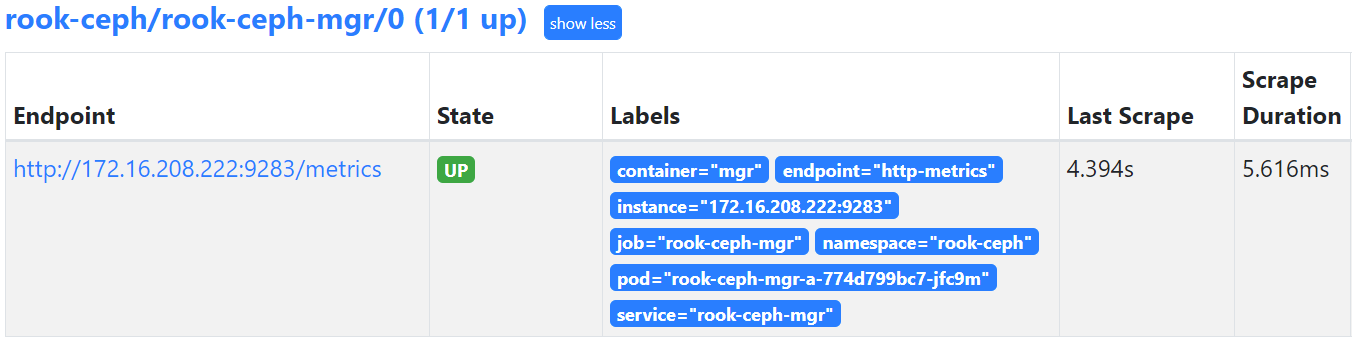
Once the Prometheus server is running, you can open a web browser and go http://<VM_FIP>:<Prometheus_port>. You should see a new target.