| Table of Contents |
|---|
External documentation
For any info on memcached use, follow this link: External documentation on memcached
...
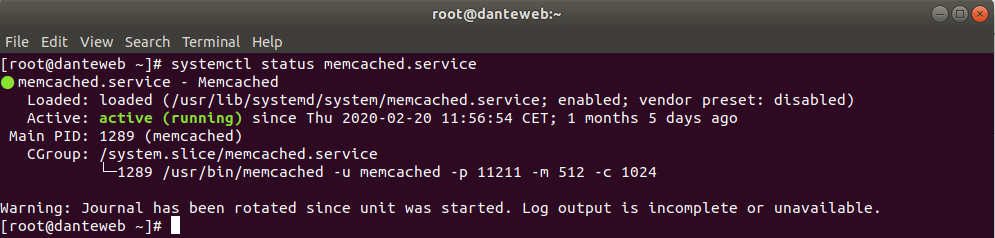
To check if memcached service is running, launch this command and check its output on server dantewebvldantemem001.lnf.infn.it (192.168.192198.10720) as root user:
| Code Block | ||
|---|---|---|
| ||
[root@dantewebroot@vldantemem001 ~]# systemctl status memcached.service |
If the service is active (view following screenshot) then it's running, otherwise read which errors are reported.
Monitoring Service
The service is monitored by grafana
Client Test
Try to connect to memcached service with the following command:
| Code Block | ||
|---|---|---|
| ||
telnet 192vldantemem001.168lnf.192infn.107it 11211 |
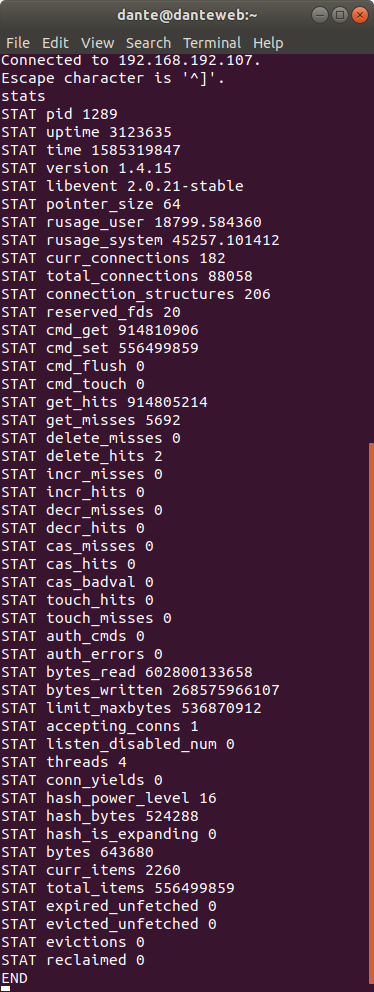
The server must answer like the following screenshot:
...
The server will respond like this screenshot:
List all keys (libmemcached-tools package) :
| Code Block | ||
|---|---|---|
| ||
memcdump --server vldantemem001.lnf.infn.it |
For more commands, refer to Memcached Wiki Page.
...
To stop memcached, run this command as root user:
| Code Block | ||
|---|---|---|
| ||
[root@dantewebroot@vldantemem001 ~]# systemctl stop memcached.service |
Start Service
To start memcached, run this command as root user:
| Code Block | ||
|---|---|---|
| ||
[root@dantewebroot@vldantemem001 ~]# systemctl start memcached.service |
...
Restart Service
To restart memcached, run this command as root user:
| Code Block | ||
|---|---|---|
| ||
[root@dantewebroot@vldantemem001 ~]# systemctl restart memcached.service |