-
Created by
 Andrea Michelotti, last updated on Nov 13, 2025
18 minute read
Andrea Michelotti, last updated on Nov 13, 2025
18 minute read
This document states workflows to develop and deploy IOC on a EPIK8S infrastructure.
Common and preparatory steps
Install docker engine for mac/windows https://www.docker.com/products/docker-desktop/
For debian:
apt-get install docker-io
Create a GIT repository
Every IOC/application MUST have a GIT repository associated. A project must be created under https://baltig.infn.it/lnf-da-control or a different group like for instance:
https://baltig.infn.it/infn-epics
htps://baltig.infn.it/epics-containers
Pay attention to not set the project private otherwise will not be possible to load it into the EPIK8S.
Setup VSCODE IDE
It's highly suggested to use https://code.visualstudio.com/ to handle the project.
It's also recommended to use a container for development to decouple development of the application from the platform where the application is developed.
It's really simple to use a container please read this guide: https://code.visualstudio.com/docs/devcontainers/containers
Setup environment variables
Depending on the target beamline (i.e. sparc environ EPIK8s Sparc):
- Setup EPICS_CA_ADDR_LIST if needed,
- Phoebus environ if needed (settings.ini)
Python SoftIOC workflow
Setup a target container
For this kind of IOC it's recommended to use the docker image: baltig.infn.it:4567/epics-containers/epics-py-base since it contains the required packages and will be also the image that will be used to run this kind of softioc.
Create .devcontainer directory into your vscode workspace and create a devcontainer.json like the following:
// For format details, see https://containers.dev/implementors/json_reference/
{
    "name": "python container",
    "image": "baltig.infn.it:4567/epics-containers/epics-py-base",
    "remoteEnv": {
        // allows X11 apps to run inside the container
        "DISPLAY": "${localEnv:DISPLAY}",
        // provides a name for epics-containers to use in bash prompt etc.
        "EC_PROJECT": "${localWorkspaceFolderBasename}"
    },
    "features": {

    },
    // IMPORTANT for this devcontainer to work with docker EC_REMOTE_USER must be
    // set to vscode. For podman it should be left blank.
    "remoteUser": "${localEnv:EC_REMOTE_USER}",
    "customizations": {
        "vscode": {
            // Add the IDs of extensions you want installed when the container is created.
             "extensions": [
                "ms-python.python",
                "ms-python.vscode-pylance",
                "tamasfe.even-better-toml",
                "redhat.vscode-yaml",
                "ryanluker.vscode-coverage-gutters",
                "epicsdeb.vscode-epics",
                "ms-python.black-formatter"
            ]
        }
    },
    // Make sure the files we are mapping into the container exist on the host
    // You can place any other outside of the container before-launch commands here
    //"initializeCommand": "bash .devcontainer/initializeCommand ${devcontainerId}",
    // Hooks the global .bashprofile_dev_container but also can add any other commands
    // to run in the container at creation in here
    //"postCreateCommand": "bash .devcontainer/postCreateCommand ${devcontainerId}",
	// forward ports to clients
     "appPort": [5064,"5064:5064/udp","5065:5065/udp"],

    "runArgs": [
        // Allow the container to access the host X11 display and EPICS CA
        //"--net=host",
        // Make sure SELinux does not disable with access to host filesystems like tmp
        "--security-opt=label=disable"
    ],
    "workspaceMount": "source=${localWorkspaceFolder},target=/app/${localWorkspaceFolderBasename},type=bind",
    "workspaceFolder": "/app/${localWorkspaceFolderBasename}",
    "mounts": [
        // Mount some useful local files from the user's home directory
        // By mounting the parent of the workspace we can work on multiple peer projects
        "source=${localWorkspaceFolder}/../,target=/repos,type=bind",
        // this provides eternal bash history in and out of the container
        "source=${localEnv:HOME}/.bash_eternal_history,target=/root/.bash_eternal_history,type=bind",
        // this bashrc hooks up the .bashrc_dev_container in the following mount
        "source=${localWorkspaceFolder}/.devcontainer/.bashrc,target=/root/.bashrc,type=bind",
        // provides a place for you to put your shell customizations for all your dev containers
        "source=${localEnv:HOME}/.bashrc_dev_container,target=/root/.bashrc_dev_container,type=bind",
        // provides a place to install any packages you want to have across all your dev containers
        "source=${localEnv:HOME}/.bashprofile_dev_container,target=/root/.bashprofile_dev_container,type=bind",
        // provides the same command line editing experience as your host
        "source=${localEnv:HOME}/.inputrc,target=/root/.inputrc,type=bind"
    ]
}
A fully functional example:
https://baltig.infn.it/infn-epics/py-ioc-collector
Access container from command line
To test the container connection:
docker run -it baltig.infn.it:4567/epics-containers/epics-py-base bash

epics@d916ac2d3987:~$ export EPICS_CA_ADDR_LIST=rdsparcpitaia001.lnf.infn.it ## list of IOCs or gateway
epics@d916ac2d3987:~$ python
Python 3.10.12 (main, Nov 20 2023, 15:14:05) [GCC 11.4.0] on linux
Type "help", "copyright", "credits" or "license" for more information.
>>> import epics
>>> epics.caget("SR00RPA01:DVDR")
'Redpitaya'
Follow development guidelines
SOFT IOC Development SoftIOC in a Linux-like environment
EPICS C/C++ IOC Development
A docker image that can be used as epics7 for development is:
ghcr.io/infn-epics/infn-epics-ioc-developer
It contains several support modules used in deployment.
Simple command line interaction
For instance to start a shell and mount the current directory '.' to /mnt :
The example here below initialize a directory with a standard ioc/support tree:
docker run -p 5064:5064/udp -p 5064:5064/tcp -p 5065:5065/udp -p 5065:5065/tcp -v .:/mnt -it ghcr.io/infn-epics/infn-epics-ioc-linux-developer:latest bash
## docker shell
cd /mnt ## go in the . directory that is mounted
mkdir mynewiocsample
cd mynewuicsample
makeBaseApp.pl -t example mynewiocsample # create DB and support
makeBaseApp.pl -i -t example mynewiocsample  mynewiocsample # create iocboot directory ## as appname use mynewiocsample

make
cd mynewiocsample/iocboot/mynewiocsample # st.cmd
chmod +x ./st.cmd ## to make it executable
./st.cmd # start the ioc and load example DB
It use the EPICS scripts makeBaseApp.pl to create a valid ioc tree directory tree.
Setup a target container
If you have an account on github (strongly suggested), you can use a predefined github template to create a new git project from template: https://github.com/infn-epics/epics-devcontainer-template
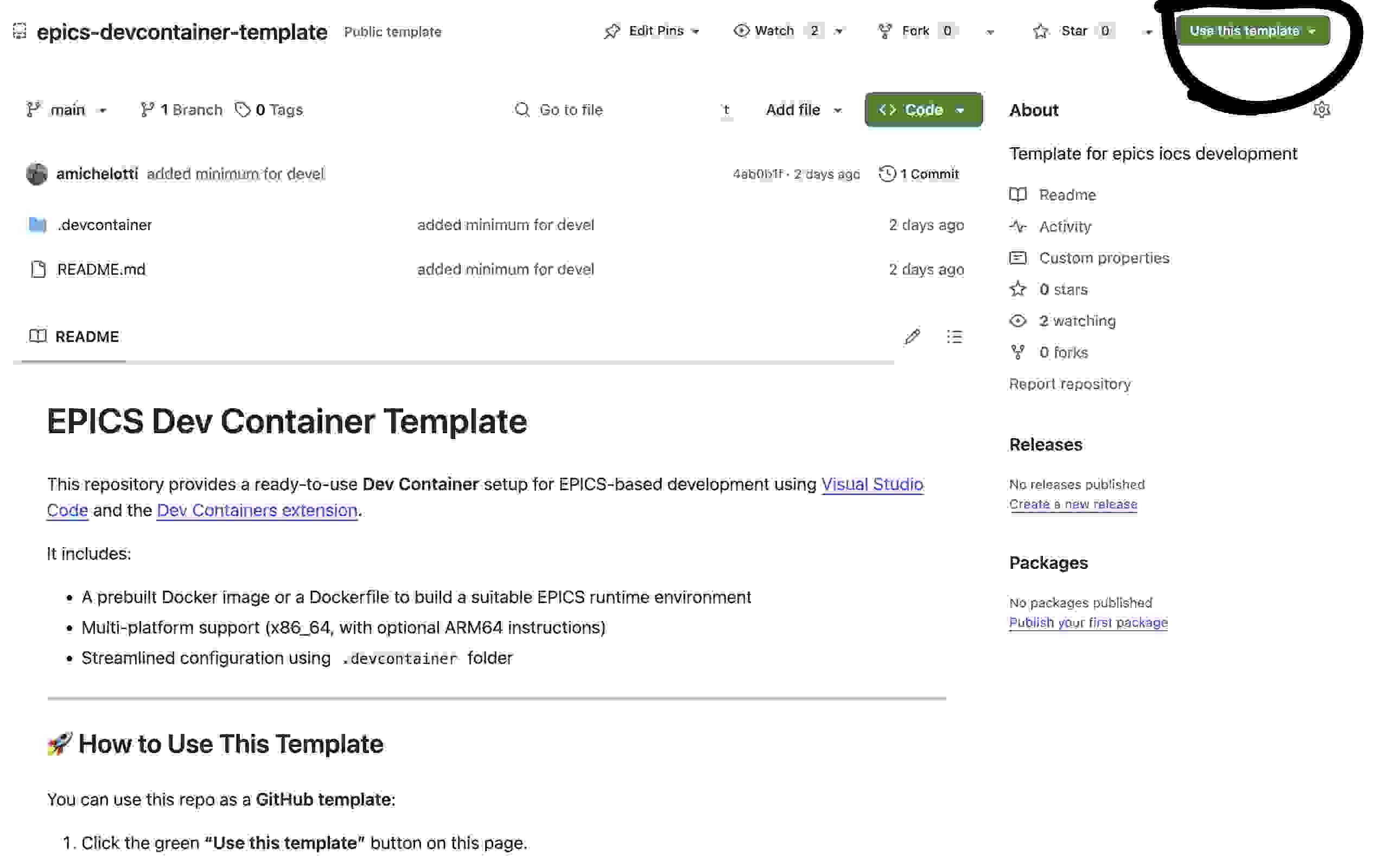
Otherwise:
Create .devcontainer directory into your vscode workspace and create a devcontainer.json like the following:
// For format details, see https://containers.dev/implementors/json_reference/
{
    "name": "Native IOC development container",
    "image": "ghcr.io/infn-epics/infn-epics-ioc-linux-developer:latest",
    "remoteEnv": {
        // allows X11 apps to run inside the container
        "DISPLAY": "${localEnv:DISPLAY}",
        // provides a name for epics-containers to use in bash prompt etc.
        "EC_PROJECT": "${localWorkspaceFolderBasename}"
    },
    "features": {

    },
    // IMPORTANT for this devcontainer to work with docker EC_REMOTE_USER must be
    // set to vscode. For podman it should be left blank.
    "remoteUser": "${localEnv:EC_REMOTE_USER}",
    "customizations": {
        "vscode": {
            // Add the IDs of extensions you want installed when the container is created.
             "extensions": [
                "ms-python.python",
                "ms-python.vscode-pylance",
                "tamasfe.even-better-toml",
                "redhat.vscode-yaml",
                "ryanluker.vscode-coverage-gutters",
                "epicsdeb.vscode-epics",
                "ms-python.black-formatter"
            ]
        }
    },
    // Make sure the files we are mapping into the container exist on the host
    // You can place any other outside of the container before-launch commands here
    //"initializeCommand": "bash .devcontainer/initializeCommand ${devcontainerId}",
    // Hooks the global .bashprofile_dev_container but also can add any other commands
    // to run in the container at creation in here
    //"postCreateCommand": "bash .devcontainer/postCreateCommand ${devcontainerId}",
	// forward ports to clients
     "appPort": [5064,"5064:5064/udp","5065:5065/udp"],

    "runArgs": [
        // Allow the container to access the host X11 display and EPICS CA
        //"--net=host",
        // Make sure SELinux does not disable with access to host filesystems like tmp
        "--security-opt=label=disable"
    ],
    "workspaceMount": "source=${localWorkspaceFolder},target=/app/${localWorkspaceFolderBasename},type=bind",
    "workspaceFolder": "/app/${localWorkspaceFolderBasename}",
    "mounts": [
        // Mount some useful local files from the user's home directory
        // By mounting the parent of the workspace we can work on multiple peer projects
        "source=${localWorkspaceFolder}/../,target=/repos,type=bind",


    ]
}
REMOTE POD DEVELOPMENT (NEW)
It may be possible that some IOC access a network or HW that is not available locally.
The administrator could have created development pods that run exactly where they should run, this pods have all the environment and the minimum packages to develop epics and softioc applications.
These pods are accessible via ssh and specific ports, for these pods it is possible to setup VSCODE remote development via ssh.
These pods runs in the cluster so they can be view by gateways and other tools.
Allocation of a new pod for development
The allocation of a new pod for development is straightforward, it needs to add an entry in the EPIK8s beamline yaml configuration (deploy/values.yaml) see EPIK8s Beamline.
In the following example are instantiated different developments pods:
- development-andrea, it is constrained to run on the nodes that may access sparc-magnets network
- development-alessandro, it is constrained to run on the nodes that may access sparc-cams network
- development-gpu it is contrained to run on nodes that have a GPU
- development-generic it's not constrained and may run everywhere
To access a development pod simply use ssh dante@<one machine cluster address i.e 10.10.6.18> -p <ssh_nodeport>.
Entry in values.yaml
- name: "development-andrea"
      image: "ghcr.io/infn-epics/infn-epics-ioc-developer"
      charturl: 'https://baltig.infn.it/epics-containers/ioc-chart.git'
      autosync: false ## restart automatically on changes
      devtype: development
      networks:
        - name: "control"
          annotation: "sparc-magnets"
      ssh_nodeport: 30022
      securityContext:
        runAsUser: 0
        runAsGroup: 0

    - name: "development-alessandro"
      image: "ghcr.io/infn-epics/infn-epics-ioc-developer"
      charturl: 'https://baltig.infn.it/epics-containers/ioc-chart.git'
      autosync: false ## restart automatically on changes
      devtype: development
      networks:
        - name: "control"
          annotation: "sparc-cams"
      ssh_nodeport: 30023
      securityContext:
        runAsUser: 0
        runAsGroup: 0

	- name: "development-gpu"
      image: "ghcr.io/infn-epics/infn-epics-ioc-developer"
      charturl: 'https://baltig.infn.it/epics-containers/ioc-chart.git'
      autosync: false ## restart automatically on changes
      devtype: development
      runon:
        - name: "control"
          annotation: "gpu"
      ssh_nodeport: 30029
      securityContext:
        runAsUser: 0
        runAsGroup: 0

	- name: "development-generic"
      image: "ghcr.io/infn-epics/infn-epics-ioc-developer"
      charturl: 'https://baltig.infn.it/epics-containers/ioc-chart.git'
      autosync: false ## restart automatically on changes
      devtype: development

      ssh_nodeport: 30028
      securityContext:
        runAsUser: 0
        runAsGroup: 0
So for instance:
ssh epics@10.10.6.18 -p 30022 ## will access pod development-andrea
ssh epics@10.10.6.18 -p 30023 ## will access pod development-alessandro
ssh epics@10.10.6.18 -p 30024 ## will access pod development-gpu
ssh config client
It can be useful for VScode development to add a specific entry in .ssh/config, adding these lines it will be possible to connect just doing ssh epics@10.10.6.18 and passord
Host 10.10.6.18
  HostName 10.10.6.18
  User epics
  Port 300xx ## replace with yours
  StrictHostKeyChecking no
  UserKnownHostsFile /dev/null
New IOC using Modbus support
You can use the predefined github template to create the new modbus IOC project for your ioc template: MODBUS TEMPLATE
Examples
New IOC using StreamDevice support
You can use the predefined github template to create the new streamdevice IOC project for your ioc template: STREAMDEVICE TEMPLATE
Examples
GIGE Camera
Gigavision cameras that support GIGE protocol can be acquired by ADAravis support that is already included in production/development infn-epics-ioc container.
NOTE: this container must be launched with the --network=host to access GIGE cameras.
Devel example
Example development the arv-tool command inside the container can be used to explore cameras that can be accessed:
docker run --network=host -v .:/epics/ioc/config -it ghcr.io/infn-epics/infn-epics-ioc-linux-developer:latest bash
..

root@chaost-camera01:/epics/generic-source/ioc/config# arv-tool-0.8
Basler-a2A1920-51gmBAS-40426579 (192.168.115.49)
Basler-a2A2600-20gmBAS-40437925 (192.168.115.48)
Basler-scA640-70gm-24159532 (192.168.115.50)
Production example
The configuration and pipelining of plugin can be very difficult and error prone, so the IBEK + templating support is highly recommended IBEK.
Create a directory <test> and create a camera_template.j2 file like that:
camera template
# yaml-language-server: $schema=../schemas/ibek.support.schema.json
ioc_name: {{name}}
description: Camera SIM model with plugins

entities:
  {%- if devtype == "camerasim" %}
  - type: ADSimDetector.simDetector
  {% else %}
  - type: ADAravis.aravisCamera
    ID: {{CAMERA_ID}}
    CLASS: {{CAMERA_CLASS}}
  {% endif %}
    PORT: {{iocroot}}
    P: "{{iocprefix}}:"
    R: "{{iocroot}}:"


  - type: ADCore.NDROI
    PORT: {{iocroot}}.ROI1
    NDARRAY_PORT: {{iocroot}}
    P: "{{iocprefix}}:{{iocroot}}"
    R: ":Roi1:"
    ENABLED: 1

  - type: ADCore.NDProcess
    PORT: {{iocroot}}.PROC
    P: "{{iocprefix}}:{{iocroot}}"
    R: ":Proc1:"
    NDARRAY_PORT: {{iocroot}}.ROI1
    ENABLED: 1

  - type: ADCore.NDOverlay
    PORT: {{iocroot}}.OVERLAY1
    NDARRAY_PORT: {{iocroot}}
    P: "{{iocprefix}}:{{iocroot}}"
    R: ":Overlay1:"
    NAME: "Reference"
    NOverlays: 8
    SHAPE: "3"
    XPOS: ""
    YPOS: ""
    XCENT: ""
    YCENT: ""
    XSIZE: ""
    YSIZE: ""
    XWIDTH: ""
    YWIDTH: ""
    O: "1:"

  # Want to have also high throuput PVA protocol
  - type: ADCore.NDPvaPlugin
    PORT: {{iocroot}}.PVA
    PVNAME: "{{iocprefix}}:{{iocroot}}:PVA:OUTPUT"
    P: "{{iocprefix}}:{{iocroot}}"
    R: ":Pva1:"
    NDARRAY_PORT: {{iocroot}}
    ENABLED: 1

  - type: ADCore.NDPvaPlugin
    PORT: {{iocroot}}.PVA2
    PVNAME: "{{iocprefix}}:{{iocroot}}:PROC:OUTPUT"
    P: "{{iocprefix}}:{{iocroot}}"
    R: ":Proc1:Pva1:"
    NDARRAY_PORT: {{iocroot}}.PROC
    ENABLED: 1


  - type: ADCore.NDPvaPlugin
    PORT: {{iocroot}}.PVA3
    PVNAME: "{{iocprefix}}:{{iocroot}}:ROI1:OUTPUT"
    P: "{{iocprefix}}:{{iocroot}}"
    R: ":Roi1:Pva1:"
    NDARRAY_PORT: {{iocroot}}.ROI1
    ENABLED: 1


  - type: ADCore.NDStdArrays
    P: "{{iocprefix}}:{{iocroot}}"
    R: ":image1:"
    PORT: {{iocroot}}.NTD
    NDARRAY_PORT: {{iocroot}}
    TYPE: {{CAMERA_TYPE}}
    FTVL: {{CAMERA_FTVL}}
    NELEMENTS: {{CAMERA_ELEMS}}
    ENABLED: 1


  - type: ADCore.NDPvaPlugin
    PORT: {{iocroot}}.PVA4
    PVNAME: "{{iocprefix}}:{{iocroot}}:OVERLAY1:OUTPUT"
    P: "{{iocprefix}}:{{iocroot}}"
    R: ":Overlay1:Pva1:"
    NDARRAY_PORT: {{iocroot}}.OVERLAY1
    ENABLED: 1

  - type: ADCore.NDStdArrays
    P: "{{iocprefix}}:{{iocroot}}"
    R: ":image2:"
    PORT: {{iocroot}}.NTD2
    NDARRAY_PORT: {{iocroot}}.PROC
    TYPE: {{CAMERA_TYPE}}
    FTVL: {{CAMERA_FTVL}}
    NELEMENTS: {{CAMERA_ELEMS}}
    ENABLED: 1

  - type: ADCore.NDStats
    PORT: {{iocroot}}.STATS
    NDARRAY_PORT: {{iocroot}}
    HIST_SIZE: 50
    P: "{{iocprefix}}:{{iocroot}}"
    R: ":Stats1:"
    XSIZE: {{CAMERA_STATS_XSIZE}}
    YSIZE: {{CAMERA_STATS_YSIZE}}
    ENABLED: 1

  - type: ADCore.NDStats
    PORT: {{iocroot}}.STATS2
    NDARRAY_PORT: {{iocroot}}.PROC
    HIST_SIZE: 50
    P: "{{iocprefix}}:{{iocroot}}"
    R: ":Proc1:Stats1:"
    XSIZE: {{CAMERA_STATS_XSIZE}}
    YSIZE: {{CAMERA_STATS_YSIZE}}
    ENABLED: 1

  - type: ADCore.NDStats
    PORT: {{iocroot}}.STATS3
    NDARRAY_PORT: {{iocroot}}.ROI1
    HIST_SIZE: 50
    P: "{{iocprefix}}:{{iocroot}}"
    R: ":Roi1:Stats1:"
    XSIZE: {{CAMERA_STATS_XSIZE}}
    YSIZE: {{CAMERA_STATS_YSIZE}}
    ENABLED: 1


  - type: ADCore.NDFileTIFF
    PORT: {{iocroot}}.TIFF
    NDARRAY_PORT: {{iocroot}}
    P: "{{iocprefix}}:{{iocroot}}"
    R: ":TIFF1:"
    ENABLED: 1

  - type: ADCore.NDFileTIFF
    PORT: {{iocroot}}.TIFF2
    NDARRAY_PORT: {{iocroot}}.PROC
    P: "{{iocprefix}}:{{iocroot}}"
    R: ":Proc1:TIFF1:"
    ENABLED: 1

  - type: ADCore.NDFileTIFF
    PORT: {{iocroot}}.TIFF3
    NDARRAY_PORT: {{iocroot}}.ROI1
    P: "{{iocprefix}}:{{iocroot}}"
    R: ":Roi1:TIFF1:"
    ENABLED: 1

  - type: ADCore.NDFileTIFF
    PORT: {{iocroot}}.TIFF4
    NDARRAY_PORT: {{iocroot}}.OVERLAY1
    P: "{{iocprefix}}:{{iocroot}}"
    R: ":Overlay1:TIFF1:"
    ENABLED: 1

  - type: epics.PostStartupCommand
    command: dbl              ## dumps PV NAMES

  - type: epics.PostStartupCommand
    command: |
      dbl("*") > {{data_config}}/pvlist.txt
      dbpf("{{iocprefix}}:{{iocroot}}:TIFF1:FilePath", "{{data_dir}}")
      dbpf("{{iocprefix}}:{{iocroot}}:TIFF1:FileWriteMode",2)
      dbpf("{{iocprefix}}:{{iocroot}}:TIFF1:FileName","camera")
      dbpf("{{iocprefix}}:{{iocroot}}:TIFF1:AutoIncrement",1)

      dbpf("{{iocprefix}}:{{iocroot}}:TIFF1:FileTemplate","%s%s_%3.3d.tiff")
      dbpf("{{iocprefix}}:{{iocroot}}:Proc1:TIFF1:FilePath", "{{data_dir}}")
      dbpf("{{iocprefix}}:{{iocroot}}:Proc1:TIFF1:FileWriteMode",2)
      dbpf("{{iocprefix}}:{{iocroot}}:Proc1:TIFF1:FileName","{{iocroot}}")
      dbpf("{{iocprefix}}:{{iocroot}}:Proc1:TIFF1:AutoIncrement",1)
      dbpf("{{iocprefix}}:{{iocroot}}:Proc1:TIFF1:FileTemplate","%s%s_proc_%3.3d.tiff")

      dbpf("{{iocprefix}}:{{iocroot}}:Proc1:TIFF:FilePath", "{{data_dir}}")
      dbpf("{{iocprefix}}:{{iocroot}}:Proc1:TIFF:FileWriteMode",2)
      dbpf("{{iocprefix}}:{{iocroot}}:Proc1:TIFF:FileName","{{iocroot}}")
      dbpf("{{iocprefix}}:{{iocroot}}:Proc1:TIFF:AutoIncrement",1)
      dbpf("{{iocprefix}}:{{iocroot}}:Proc1:TIFF:FileTemplate","%s%s_proc_%3.3d.tiff")

      dbpf("{{iocprefix}}:{{iocroot}}:Roi1:TIFF1:FilePath", "{{data_dir}}")
      dbpf("{{iocprefix}}:{{iocroot}}:Roi1:TIFF1:FileWriteMode",2)
      dbpf("{{iocprefix}}:{{iocroot}}:Roi1:TIFF1:FileName","{{iocroot}}")
      dbpf("{{iocprefix}}:{{iocroot}}:Roi1:TIFF1:AutoIncrement",1)
      dbpf("{{iocprefix}}:{{iocroot}}:Roi1:TIFF1:FileTemplate","%s%s_roi_%3.3d.tiff")
      dbpf("{{iocprefix}}:{{iocroot}}:Overlay1:TIFF1:FilePath", "{{data_dir}}")
      dbpf("{{iocprefix}}:{{iocroot}}:Overlay1:TIFF1:FileWriteMode",2)
      dbpf("{{iocprefix}}:{{iocroot}}:Overlay1:TIFF1:FileTemplate","%s%s_overlay_%3.3d.tiff")
      dbpf("{{iocprefix}}:{{iocroot}}:Overlay1:TIFF1:FileName","{{iocroot}}")
      dbpf("{{iocprefix}}:{{iocroot}}:Overlay1:EnableCallbacks","1")
      {%- for param in iocinit %}
        dbpf("{{iocprefix}}:{{iocroot}}:{{param.name}}","{{param.value}}")
      {%- endfor %}

  - type: epics.EpicsCaMaxArrayBytes
    max_bytes: 10000000
camera ibek specific rendering
And a camerainit.yml that produce the ibek yaml for the given camera:
name: "SCOUT640"
asset: "https://confluence.infn.it/x/nYD8DQ"
charturl: 'https://baltig.infn.it/epics-containers/ioc-launcher-chart.git'
host: "192.168.197.24"
user: "root"
iocdir: "camera"
ca_server_port: 5264
pva_server_port: 5275
docker:
  enable: true
  image: baltig.infn.it:4567/epics-containers/infn-epics-ioc:latest
devtype: camera
devgroup: diag
iocprefix: "EUAPS:CAM"
iocroot: "SCOUT64"
autosync: false ## restart automatically on changes
opi:
  url: https://baltig.infn.it/infn-epics/camera-opi.git
  main: Camera_Main.bob
  macro:
    - name: "DEVICE"
      value: EUAPS:CAM
    - name: "CAM"
      value: "SCOUT64"

CAMERA_ID: "Basler-scA640-70gm-24159532"
CAMERA_CLASS: "Basler-scA640-70gm"
CAMERA_TYPE: "Int8"
CAMERA_FTVL: "USHORT"
CAMERA_ELEMS: 5616000
CAMERA_STATS_XSIZE: 1024
CAMERA_STATS_YSIZE: 768
The application jnjrender (pip install jnjrender) will render a valid ibek yaml camera_template.yaml
jnjrender camera_template.j2 camerainit.yml --output camera_template.yaml
camera run
Now launch the docker mounting the directory that contains the camera_template.yaml in /epics/ioc/config
docker run --network=host -v .:/epics/ioc/config -it baltig.infn.it:4567/epics-containers/infn-epics-ioc
IBEK support and "IBEKisation step"
To allow an easy portability of a IOC (in particular IOC that can run inside containers) once an IOC or support is ready and tested, the next step is the DiamonLightSsource "ibekization". This steps in few words allows to instantiate a general st.cmd with support through a simple YAML file.
1- Add a new support in infn-epics-ioc
Once your IOC has its own GIT project, clone the infn-epics-ioc project that is the project the build the container with all IOC supports for infn.
git clone https://github.com/infn-epics/infn-epics-ioc.git --recurse-submodules
This project contains the following layout:
infn-epics-ioc directory tree
├── Dockerfile                   <-- file where to add the new support this file will create the docker image
├── Dockerfile.all
├── Dockerfile.base
├── LICENSE
├── README.md
├── build
├── build-base
├── epics-support-template-infn  <-- JNJA2 templates for not ibekizable supports
├── ibek-support                 <-- DLS base ibek-support
├── ibek-support-infn            <-- 1 INFN specific ibek supports ADD NEW support HERE
├── ibek-templates               <-- 3 JNJA2 templates to generalize, make sophisticated templates and allow parameters to be given
├── tests                        <-- 4 test directory
2- Create support directory
Suppose your new support is named <mynewsupportname>
create a directory in ibek-support-infn/<mynewsupportname> this directory must contain two files:
- mynewsupportname.ibek.support.yaml
- mynewsupportname.install.yml
like in the example:
ibek-support-infn
│   ├── mynewsupportname
│   │   ├── mynewsupportname.ibek.support.yaml   <== here the st.cmd yaml translation instruction
│   │   ├── mynewsupportname.install.yml         <== here the instruction to install
│   ├── Tektronix_MSO58LP
│   │   ├── Tektronix_MSO58LP.ibek.support.yaml
│   │   └── Tektronix_MSO58LP.install.yml
3- Create the install support file mynewsupportname.install.yml
mynewsupportname.install.yml
# yaml-language-server: $schema=../../ibek-support/_scripts/support_install_variables.json

module: mynewsupportname ## your git project name
version: devel ## your reversion/tag

# this module uses modbus so requires none of its own libs/dbds
organization: https://github.com/infn-epics/ ## your git organization name

dbds:								## here the dbds used by your ioc/support
  - asyn.dbd
  - stream.dbd
  - calc.dbd
  - asSupport.dbd
  - sscan.dbd
  - <mynewsupportname>.dbd

libs:								#here
  - asyn
  - stream
  - calc
  - autosave
  - <mynewsupportname>Support  ## if you have support libs


protocol_files:
  - db/<mynewsupportname>.proto ## if you have protocols file
4- Create the support file mynewsupportname.ibek.support.yml
mynewsupportname.ibek.support.yaml
Here you have to instruct how the yaml expand in the st.cmd of your IOC. For example:
# yaml-language-server: $schema=https://github.com/epics-containers/ibek/releases/download/3.1.2/ibek.support.schema.json


module: mynewsupportname

entity_models:
  - name: mycontroller
    description: |-
      Create a my controller
    parameters:
      name:
        type: id
        description: |-
          The name of the controller and its Asyn Port Name
      P:
        type: str
        description: |-
          Device PV Prefix
      IP:
        type: str
        description: |-
          IP address of the ethernet2serial
        default: 127.0.0.1 ## localhost

      TCPPORT:
        type: int
        description: |-
          Port of the ethernet2serial
        default: 4001

      ASYNPRIO:
        type: int
        description: |-
          ASYN   PRIORITY, Default : 0
        default: 0

      AUTOCONNECT:
        type: int
        description: |-
          Asyn auto connect
          0: Auto connection
          1: no Auto connection
        default: 0

      NOPRECESSESOS:
        type: int
        description: |-
          ASYN   noProcessEos, Default : 0
          https://epics.anl.gov/tech-talk/2020/msg01705.php
        default: 0

      TPG_UNDERRANGE_ALARM_SEVERITY_A1:
        type: enum
        description: |-
            underrange severity A1
        values:
          MINOR:
          MAJOR:
          NO_ALARM:
        default: MINOR

      TPG_UNDERRANGE_ALARM_SEVERITY_A2:
        type: enum
        description: |-
            underrange severity A2
        values:
          MINOR:
          MAJOR:
          NO_ALARM:
        default: MINOR

      TPG_UNDERRANGE_ALARM_SEVERITY_B1:
        type: enum
        description: |-
            underrange severity
        values:
          MINOR:
          MAJOR:
          NO_ALARM:
        default: MINOR

      TPG_UNDERRANGE_ALARM_SEVERITY_B2:
        type: enum
        description: |-
            underrange severity
        values:
          MINOR:
          MAJOR:
          NO_ALARM:
        default: MINOR

    pre_init:
      - value: |
          drvAsynIPPortConfigure("{{name}}", "{{IP}}:{{TCPPORT}}", 0, 0, 0)
          epicsEnvSet "STREAM_PROTOCOL_PATH", "/epics/support/configure/protocol/
    databases:
      - file: <mymodule1>.db
        args:
          P:
          PORT: '{{name}}'
          TPG_UNDERRANGE_ALARM_SEVERITY_A1:
          TPG_UNDERRANGE_ALARM_SEVERITY_A2:
          TPG_UNDERRANGE_ALARM_SEVERITY_B1:
          TPG_UNDERRANGE_ALARM_SEVERITY_B2:


  - name: mychannel
    description: |-
      Template database for a channel
    parameters:
      controller:
        type: object
        description: |-
          a reference to the controller
      name:
        type: str
        description: |-
          channel prefix

      channel:
        type: enum
        description: |-
          Channel
        values:
          A1:
          A2:
          B1:
          B2:

      TPG_UNDERRANGE_ALARM_SEVERITY:
        type: enum
        description: |-
            underrange severity
        values:
          MINOR:
          MAJOR:
          NO_ALARM:
        default: MINOR

    databases:
      - file: $(MYMODULENAME)/mydb2.template
        args:
          P: '{{controller.P}}'
          NAME: '{{name}}'
          CHAN: '{{channel}}'
          PORT: '{{controller.name}}'
          TPG_UNDERRANGE_ALARM_SEVERITY:
5- Add the new support to the container
Edit Dockerfile and add two lines for mynewsupportname
.....

COPY ibek-support-infn/motorMicos motorMicos/
RUN ansible.sh motorMicos

COPY ibek-support-infn/cagateway cagateway
RUN ansible.sh cagateway

COPY ibek-support-infn/mynewsupportname mynewsupportname   ## NEW support
RUN ansible.sh mynewsupportname							   ##
6- Build the container inside VScode
CTRL(or Command)+Shift+P (Rebuild Container or open directory in container)
If the build succeed your support has been re-compiled successfully, otherwise check the errors.
7- Create/update a JNJA2 template that use your new support
Your new support to be instantiated needs a YAML that parametrize the values that you defined in your support so for instance for your support a valid YAML could be:
iocname: mynewioc
description: test


entities:
  - type: mynewsupportname.mycontroller
    name: MYCONTROLLER
    P: "MYBEAMLINE:TEST"
    IP: "192.168.1.1"
    TCPPORT: 4001

  - type: mynewsupportname.mychannel
    controller: MYCONTROLLER
    name: "PIPPO"
    channel: A1
Normally a particular module/IOC is re-used multiple time and may include many different types/cases instead to have many YAMLs to configure each of them a single JNJA2 template is written yaml.j2 JNJA2 is a powerful preprocess language that may be applied to any form of text to perform substitutions, logic and flow, it's used in many contextes to create templates.
So the previous YAML can be templated to be used by EPIK8S. In particular the yaml (deploy/values.yaml) that describes your EPIK8s beamline will initialize your template.
iocname: {{iocname}}
description: Templated test


entities:

  - type: {{devtype}}.controller
    name: MYCONTROLLER
    P: "{{iocprefix}}"
    IP: {{server}}
    TCPPORT: {{[port}}
  {%- for t in devices %}
  - type: {{devtype}}.channel
  	controller: MYCONTROLLER
  	name: "{{ t.name }}"
  	channel: {{ t.channel }}
  {%- endfor %}
8- Test your support with template
copy or update ibek-templates/templates directory
Once your have prepared your mynewsupportname.yaml.j2 place in a suitable directory inside ibek-templates/templates see infn epics ioc directory tree. For example if mynewsupportname belongs to the VAC subsystem an updated or new entry must be created into ibek-templates/templates/vac.
If it is an update the content of your mynewsupportname.yaml.j2 must be added to an existing template file adding for instance a new model of VAC of an existing template. If the support is completely new and for instance represent the first of a series of support a new directory can be created and the support file mynewsupportname.yaml.j2 copied in such directory.
Suppose the mynewsupportname is a completely new file.
update your deploy/values.yaml beamline description file
Copy your current epik8s beamline file deploy/values.yaml file in the tests directory see infn epics ioc directory tree. Add in some point of the ioc list your new ioc like that:
- name: "caenelsfast"
      asset: "https://confluence.infn.it/x/nYD8DQ"
      charturl: 'https://baltig.infn.it/epics-containers/ioc-chart.git'
 .....

    - name: "mynewIOCNAME"								   ##  replace parameter iocname
      asset: "https://confluence.infn.it/x/nYD8DQ"
      charturl: 'https://baltig.infn.it/epics-containers/ioc-chart.git'
      iocprefix: "SPARC:MAG:HZ"                            ### replace parameter iocprefix
      iocparam:
        - name: "server"                                   ### replace generic parameter server
          value: "192.168.197.102"
        - name: "port"                                     ### replacegeneric parameter port
          value: "4001"
      autosync: false ## restart automatically on changes
      devtype: "mynewsupportname"                          ### a template file may contain different device types
      devgroup: mag
      opi: "mynewsupportname"
      template: "mynewsupportname" 					        ## or the name of the directory or file where your new template is
      networks:
        - name: "control"
          annotation: "sparc-magnets"
      devices:											   ## device list parameters that will be replaced in your template
        - name: "GUN01"
          channel: "6"
        - name: "AC1SOL01"
          channel: "7"
        - name: "AC1SOL02"
          channel: "8"
test using epik8s-run
Inside the container terminal launch the utility epik8s-run that execute things as the EPIK8s will do:
rm /epics/ioc/config/* ## remove previous configs
epik8s-run tests/values.yaml mynewIOCNAME --native
This utility will take from your beamline values the ioc instance mynewIOCNAME will create a yaml using the template you wrote and will call the ibek utility to generate an ioc instance following the ibek support that you did.
So it tests a lot of things together and probably some error will be detected, even if most of typo errors can be avoided using vscode yaml schema.
Once the IOC starts everything can be committed step 9.
It's possible to check the yaml result of instantiation in /epics/ioc/config the yaml has the name like the template without .j2.
rm /epics/ioc/config/* ## remove previous configs
## the following will perform replacement and start the ioc
epik8s-run tests/values.yaml mynewIOCNAME --native

## check yaml

more /epics/ioc/config/mynewsupportname.yaml
## the resulting st.cmd after ibek instantiation of mynewsupportname.yaml can be found in
more /epics/runtime/st.cmd
Chek Intermediate files generated
/epics/ioc/config/<mynewsupportname>.yaml resulting YAML after j2 replacement with parameters given from IBEK beamline/deploy/values.yaml
/epics/runtime/st.cmd resulting st.cmd after ibek replacement using the support mynewsupportname
more /epics/ioc/config/mynewsupportname.yaml

more /epics/runtime/st.cmd
9- Commit, Tag to create a new image
ibek-infn-support and ibek-templates are git subproject so to add your new support you should go in the directories:
cd ibek-infn-support
git status
git add <mynewsupportname>
git commit -m "my first beautiful ibek support" .
git checkout main
git merge <hash/branch>
git push origin
cd ..
cd ibek-templates/templates

git add <mynewsupportdircontent>
git commit -m "my first beautiful ibek template" .
git checkout main
git merge <hash/branch>
git push origin

## now commit and push the epics-infn-ioc main project
cd ../../
git commit -m "my first beautiful support" .
git checkout main
git merge <hash/branch>
git push origin

## to create a new image a tag must be created
## list tags
git tag
git tag <last tag + 1 in minor or +1 in bump release (something temporary) <tag>b xx
git push origin <tagname created>
Release tags convention
The ufficial tags should have the following format : v<year>.<month>.<day> the test tags or fix during a day must have the suffix <bincremental number>
Deploy on the target EPIK8S
Once your IOC/application named 'mynewioc' is tested and ready to be published on the target EPIK8S.
Identify your target EPIK8S information page (i.e EPIK8s Sparc ) retrieving "GIT Control Source" URL, clone it:
git clone https://baltig.infn.it/lnf-da-control/epik8-<BEAMLINE>.git --recurse-submodules
or update a pre-existing one:
git pull --recurse-submodules ## to update remote changes
you should have a directory like this:
├── README.md
├── config
│   ├── applications
│   │   ├── flame-state-import
│   │   └── icpdastemp01
│   ├── iocs
│   │   ├── mrf01
│   │   ├── pitaya
│   │   ├── temp01
│   │   └── mynewioc                    <-- add here your folder or git subproject for configuration
│   └── services
│       └── cagateway
├── deploy
│   ├── Chart.yaml
│   ├── templates
│   │   └── epik8.yaml
│   └── values.yaml						<-- add here your IOC to deploy
├─
...
Adding IOC
Suppose your iocname is mynewioc you should create a folder with the same name. This folder should contain a:
- ioc.yaml if your IOC is generic and has support in ibek see IBEK support
- start.sh + other ioc startup files or submodules. The start.sh is the entry point that can perform some useful substitutions in case of multiple instances of same ioc and start your IOC.
In case mynewioc is a soft IOC this directory should also contain the git submodule that point to your application git repository.
Example softioc
If your mynewioc is a softioc you should have a repository for it. So in the EPIK8S folder config/iocs/mynewioc you must add your repository as submodule:
cd  <EPIK8Sfolder/config/iocs>
git pull --recurse-submodules ## to update remote changes
git submodule update --init ## to update eventually new submodules
mkdir mynewioc
git add mynewioc
cd mynewioc
## here add your new submodule
git submodule add <your repository_URL> scripts # your softioc repository will be added as scripts
git commit -m "your comment Add submodule <submodule_name>"
git push origin <your remote branch i.e main/master>
In your application repository create a bash file named start.sh (bash script) that will be used to start your application.
#!/bin/bash
script_dir=$(dirname "$0")
cd $script_dir
echo "Starting $__IOC_NAME__ : $EPICS_CA_ADDR_LIST"
python ./scripts/mynewioc <parameters> -c myconfig.json
This script will launch ./scripts/mynewioc (remember scripts scripts is the folder name you gave to your submodule in the previous step) and will give some parameters and a configuration myconfig.json file that must be added to the mynewioc.
Add IOC configuration to EPIK8s
Once your configuration directory mynewioc is complete. We need to add to the main git repository.
cd  <EPIK8Sfolder/config/iocs/mynewioc>
chmod a+x start.sh # make start.sh executable
git add start.sh myconfig.json scripts
git commit -m "my comment" .
git push origin
This way we just added the information needed to start the ioc, but we still instruct ArgoCD to launch the IOC in the EPIK8S target infrastructure.
Deploy IOC to EPIK8s infrastructure
We should now add and entry into <EPIK8Sfolder/deploy/values.yaml>
We must distinguish IOC types, the configuration is slightly different if the IOC runs inside the cluster or outside.
In cluster
You must find the iocs section in deploy/values.yaml and add your IOC:
name: "mynewioc"
      asset: "https://confluence.infn.it/x/nYD8DQ"
      charturl: 'https://baltig.infn.it/epics-containers/ioc-chart.git'
      image: baltig.infn.it:4567/epics-containers/epics-py-base
      iocprefix: "SPARC:ORBIT"
      start: "/epics/ioc/config/start.sh" ## if your mynewioc has a start.sh this line must be kept
      gitinit: true
Out Cluster
This is the case of devices that have an IOC embedded. This case EPIK8S will transfer the configuration on the remote target and will start the IOC via ssh.
NOTE: the remote IOC must have sshd and an authorised key to perform ssh commands.
 - name: "mrf01"
      asset: "https://confluence.infn.it/x/nYD8DQ"
      charturl: 'https://baltig.infn.it/epics-containers/ioc-launcher-chart.git'
      iocname: "mrf01"
      iocprefix: "MRF01"
      host: "plsparcmrf001.lnf.infn.it"									## HOST
      user: "root"														## USER
      workdir: "/home/nat/progetti/mrfioc2/iocBoot/epik8s"				## WORKDIR (where transfer config/iocs/mrf01 configuration)
      exec: "start.sh"
Test syntax deploy
It's recommended to test the deploy before commit changes to avoid putting not working deploy in ARGOCD that will block any other deploy.
To test a deploy, you need to have helm tool installed, then go into the deploy directory just where the values.yaml is. Then do the following command:
helm template --debug .
Commit the deploy
Once your deploy configuration is ready you should commit.
cd  <EPIK8Sfolder/>
git commit -m "my comment" .
git push origin
ArgoCD after few minutes will update the cluster.
The status should be visible on https://argocd-server-argocd.apps.okd-datest.lnf.infn.it/applications
Updating an existing IOC
If you only wants to updated an existing IOC, after it has been modified in the linked repository:
cd /<your git directory>/epik8-<beamline name> ## for example epik8-sparc
git pull --recurse-submodules ## to update remote changes
git submodule update --init ## to update eventually new submodules
cd  <config/iocs/<ioc_name>/scripts>
git pull ## updates to remote changes
cd ..
git add ./scripts/
git commit -m "updated IOC <ioc_name>"
git push origin
To make the changes effective in the running IOC, you have to restart the related process in ArgoCD.
Update EPICS CA clients
If you want your new IOC be visible to all EPICS CA clients you should restart ca-gateway service via ArgoCD. This could bring few seconds of services interruption.
Setup Phoebus and develop the OPI for your softioc
Install Phoebus: Phoebus.
If you want to develop the OPI for your IOC however each K8S ECS installation has in its GIT Control Source project a directory opi (that is a git subproject with other subproject) that contain a Launcher.bob and a start.sh, this setup is intended to start the main control interface of a given beamline.
If you are developing an gui interface that must be integrated in the control a OPI Development Workflow must be followed.