-
Created by
 Carmelo Pellegrino, last updated on Apr 29, 2026
7 minute read
Carmelo Pellegrino, last updated on Apr 29, 2026
7 minute read
WARNING
Before requesting a CNAF account, you need to read and accept both the Regulation on the use of INFN computing resources (Italian version) and the INFN CNAF Privacy Policy.
In order to obtain access to the CNAF computing resources, you first need to register to INFN-AAI, the INFN-wide authentication system.
In case you don't possess an INFN-AAI account, please follow the instructions in the How to request an INFN account section below.
Once you have an INFN-AAI account, you can:
- download, fill in and sign the Access Authorization Form;
- if you don’t know who is your "reference person" at CNAF, please ask via email to the user support mailing list user-support@lists.cnaf.infn.it;
- in the motivation field, it is important to clearly state the name of the scientific community you are requesting an account for. Generic reasons like "PhD thesis" or "Access data" are not significant;
- if you possess an institutional e-mail address, use that, rather than commercial ones;
- in the "preferred username" field, use the username that has been assigned to you in INFN-AAI
- send the filled form via email to sysop@cnaf.infn.it and user-support@lists.cnaf.infn.it.
- after a check of the documents, and after proper authorization from the reference person, your account will be created, and you will receive a confirmation email.
For problems with expired password or login errors to the bastion.cnaf.infn.it host, please send an email to sysop@cnaf.infn.it and user-support@lists.cnaf.infn.it.
For any other problem, please write to user-support@lists.cnaf.infn.it.
WARNING
Do not send, under any circumstance, a digital copy of your ID document.
How to request an INFN account
If you have SPID credentials or a CIE (Carta d'Identità Elettronica, the Italian Electronic Identity Card), you can use one of them to register a new certified (Level of Assurance 2, LoA2) INFN-AAI identity without the need of performing any further identification procedure.
Conversely, you will need to first register an unverified (Level of Assurance 1, LoA1) INFN-AAI identity and then proceed with the on-line identity verification process with a member of the CNAF user support team. This process will require the use of a webcam and a valid ID document.
Note
We strongly recommend to use the SPID or CIE credentials, if you have any of them.
Please jump to the subsection that is relevant for your case:
and follow ALL the reported steps, including those indicated in the Final Mandatory Steps section
You can find more information on the procedure and the level of assurance at the following wiki page: https://wiki.infn.it/cn/ccr/aai/doc/rid/istruzioni/userportal/user_loa-eng.
Registering using SPID or CIE
To register a new certified (LoA2) INFN-AAI identity using SPID or CIE credentials, please follow the next steps.
Connect to the INFN user portal at https://userportal.app.infn.it/
The INFN identity check page will open. You can switch the language by clicking on the top right corner the desired one (IT or EN). Click either "Entra con SPiD" or "Entra con CIE" buttons, depending on the credentials you possess.
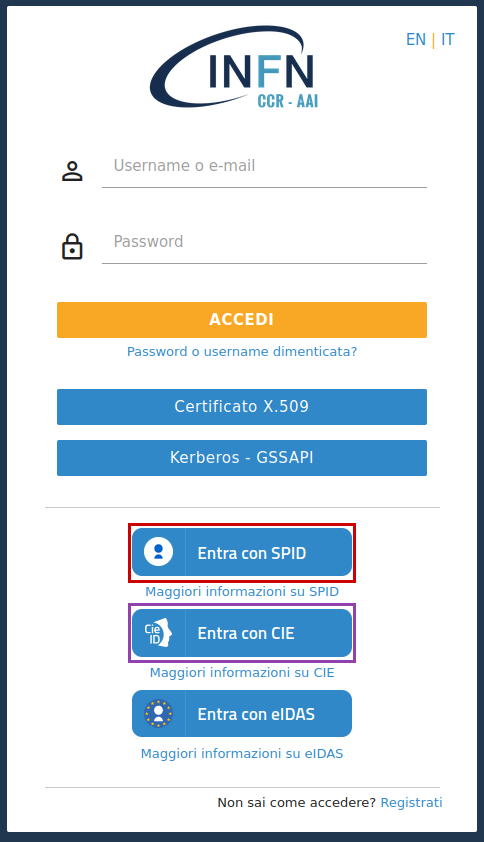
You will be redirected to the SPID or CIE identity provider page, where you will be asked to enter your credentials. Please follow the instructions of your identity provider to complete the login process.
After the login process, you will see your profile page on the INFN user portal. If the page is in Italian and you need to change it to English, you can switch the language by clicking the "ita" button in the top right corner of the page.

Click on "Enabling requests" ("Abilitazioni", in Italian) on the left menu. In this page you will see all your requests.
The first switch, "Verify Identity", should be already active and you can now click on the "IT resources" switch to turn it on and press the "Next step" button.

In the opening page, fill in all the required data, read and accept the information note on the processing of personal data at INFN, then, click on the "Next step" button.

You will be asked to choose the INFN site and the contact person that will approve your request to access INFN IT resources. Select "CNAF" as site and "Carmelo Pellegrino" as as contact person. Then, click on the "Next step" button to proceed.
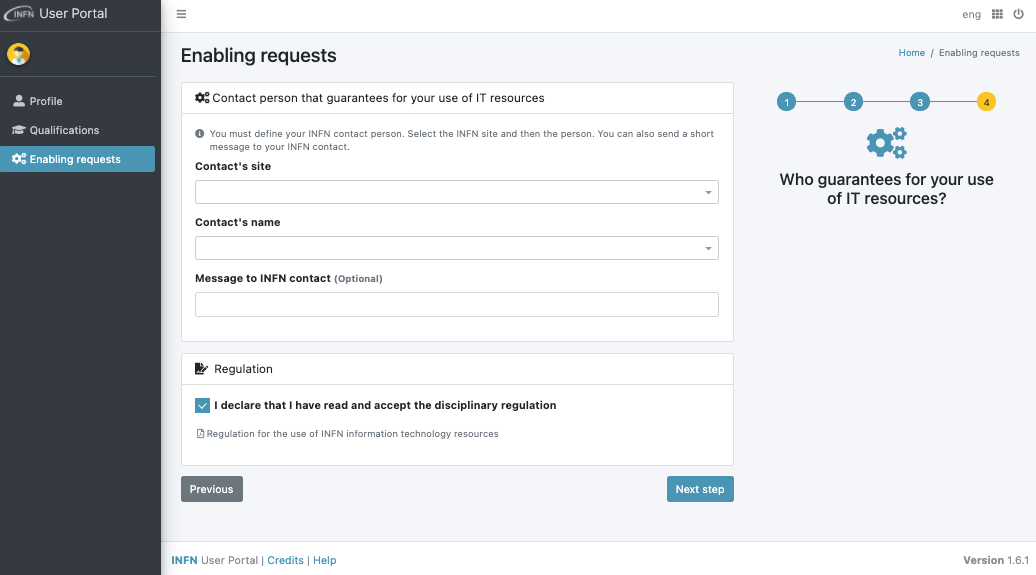
Read and accept the disciplinary regulation for the use of INFN IT resources and then click on the "Next step" button and submit your request.
You will now have to wait for the contact person to approve your request and assign a username. You can use the "Message to INFN contact" optional field to specify a preferred username and other information you may consider relevant.
Registering without SPID or CIE
This procedure should be left only to those that do not have SPID or CIE credentials.
You have to first register a new un-verified (LoA1) INFN-AAI identity.
Connect to the INFN user portal at https://userportal.app.infn.it/
The INFN identity check page will open. You can switch the language by clicking on the top right corner the desired one (IT or EN). Click on "Register" button.
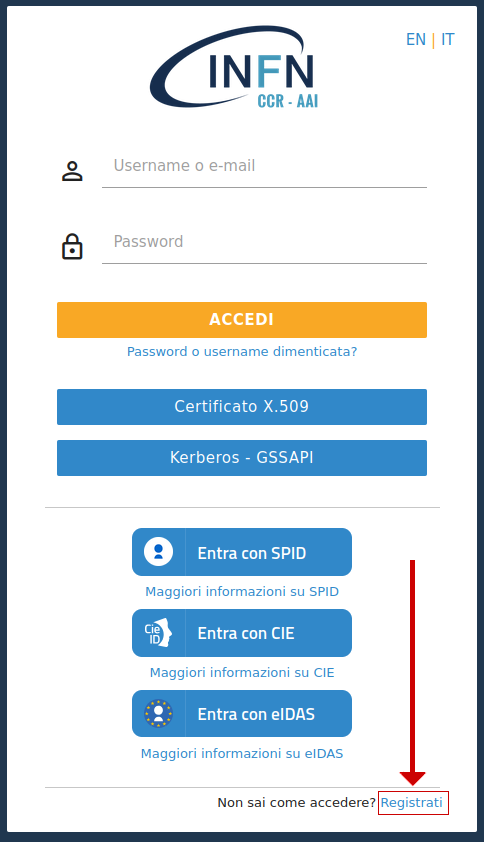
Fill in all the required data and click on the "Register" button. Note that the "Italian tax code" field is mandatory only for Italian citizens.

You will see a confirmation message that your request has been received and an email has been sent to the address you just provided, with a link to proceed with the e-mail verification process.

Please open your inbox and click on the link in the email. Please, check also the spam folder if the message is not in your inbox.

You will now see a new confirmation message stating that your unverified LoA1 account is active.

Also an email will be sent to you with the confirmation that your account is now active.
Once you have your unverified (LoA1) INFN-AAI identity you can proceed with the request of identity verification and access to IT resources.
Connect to the INFN user portal at https://userportal.app.infn.it/ and login with the email and password you used to register the unverified identity.
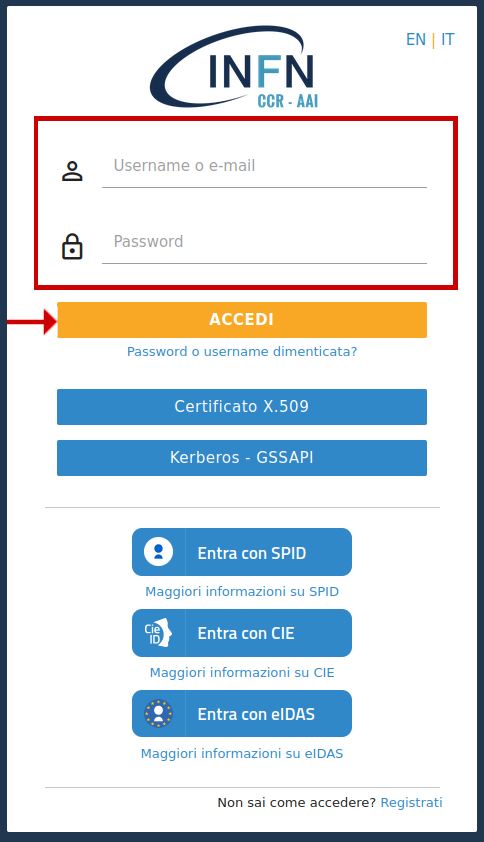
Click on "Enabling requests" ("Abilitazioni", in Italian) on the left menu

In this page you will see all your request. Click both on the "Verify Identity" and "IT resources" switches to turn them on and the click the "Next step" button.
In this new page, fill in all the required data, read and accept the information note on the processing of personal data at INFN. Then click on the "Next step" button.
Select "CNAF" as identity-verification site and in the "Message for the verification office" field write "access the INFN Tier1 computing resources". Click on the "Next step" button to proceed.
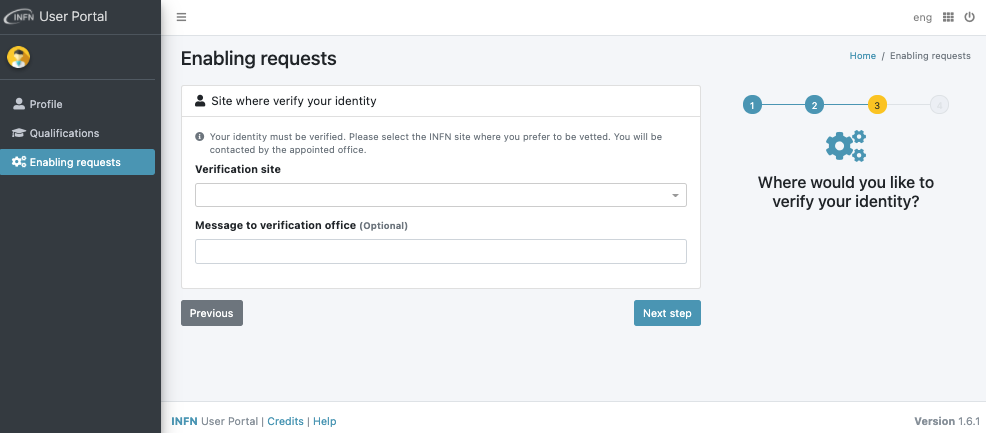
Next you have to choose the INFN site and the contact person that will approve your request to access INFN IT resources. Chose "CNAF" from the drop-down menu. Then, as contact name you have to choose Carmelo Pellegrino. Finally, click on the "Next step" button to proceed.
Read and accept the disciplinary regulation for the use of INFN IT resources and then click on the "Next step" button and submit your request.
You will now have to wait for both the verification office to get back to you to schedule the in-person verification and for the contact person to approve your request to use IT resources.
Final mandatory steps
To have an account that is fully compliant with INFN regulations, you also need to:
- Accept the Regulation for use of INFN computing resources (Italian version)
- Sustain the INFN Computer Security Course within 30 days from the creation of the account
- Enable the Multi Factor Authentication for your INFN account, even though it is not currently implemented for accessing CNAF. To do so, you need to enrol at least one token. Please note that Google Authenticator and Microsoft Authenticator can NOT be used. Please use PrivacyIdea or EnteAuth. Be sure to complete the enrol procedure by verifying the token with a freshly generated TOTP.
To ease the migration of old accounts to the new AAI, and to be sure you have successfully completed the above steps and check your account for compliance, you can ssh into bastion and execute the am-i-compliant command. It accepts an optional argument which is the username to be checked and the default is the current user username.